
Access Keys
Overview
The Access Keys page holds the API credentials that you need to connect your website or application to Midtrans. You can view, generate, rotate, and revoke these keys yourself from the dashboard. You do not need to contact Midtrans Support to change a key.
To open the page, go to Settings > Access Keys on the Midtrans Dashboard. The Payment tab shows your payment keys.
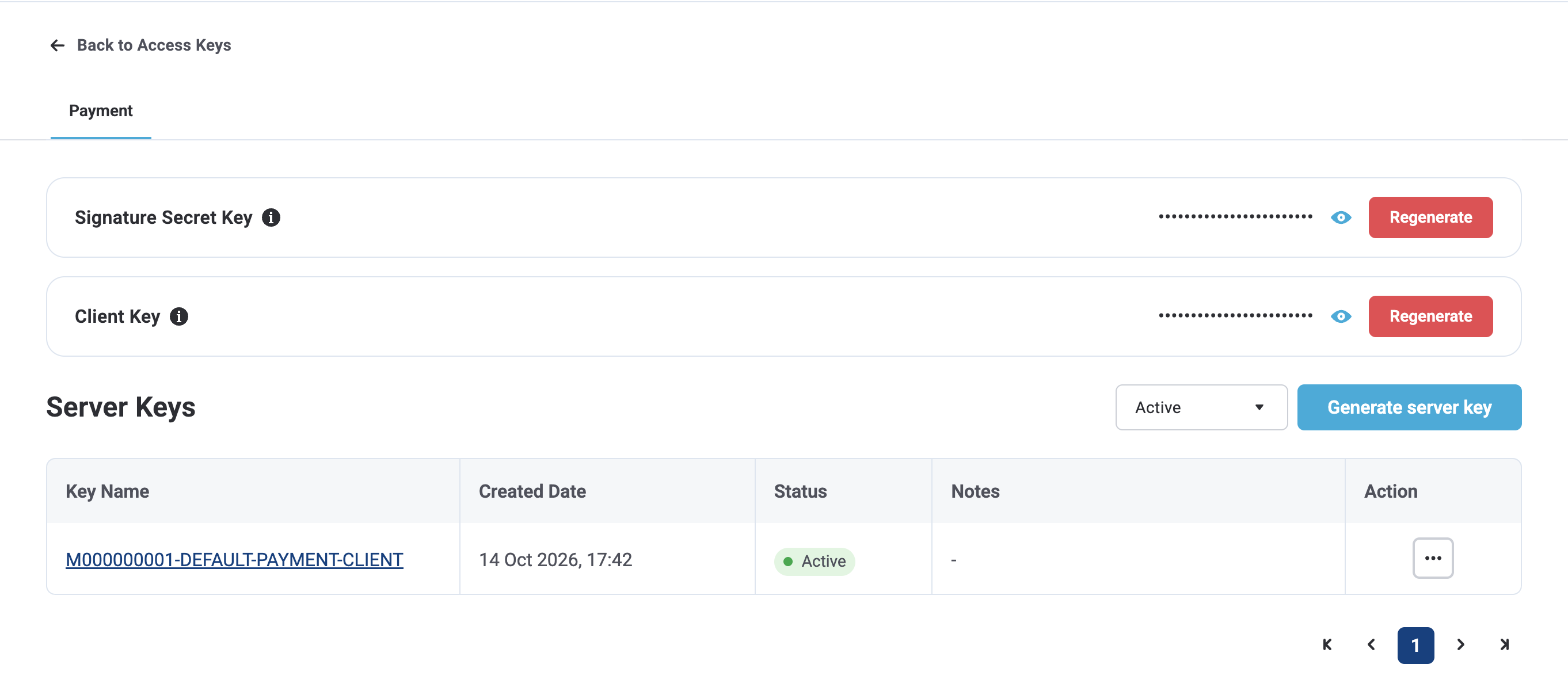
Access Keys page with the Signature Secret Key, Client Key, and Server Keys list
What changed on 28 October 2026
- You can now have up to 10 Server Keys. Each key has its own name, notes, permissions, and expiry date.
- The key that verifies HTTP notifications is now a separate key, the Signature Secret Key.
- You can regenerate the Client Key and the Signature Secret Key yourself.
- A Server Key is shown only once, when you generate it. You cannot view it again later.
API Keys
| Key | How many | Used for | Can you change it? |
|---|---|---|---|
| Merchant ID | 1 | Identifies your account when you contact Midtrans Support or Sales | No |
| Client Key | 1 | Client-side integration, for example Snap.js and card tokenization in the browser or mobile app | Yes, with Regenerate |
| Server Key | Up to 10 | Authorizes server-side API requests to Snap, Core API, Payment Link, Invoicing, and Subscriptions | Yes, generate new keys and revoke old keys |
| Signature Secret Key | 1 | Verifies the signature_key field in HTTP notifications and API responses | Yes, with Regenerate |
Keep your Server Keys and Signature Secret Key confidentialUse these keys only on your server. Never put them in frontend code, mobile apps, or public repositories. Anyone who has these keys can make API requests or send fake notifications as your business.
Server Keys
The Server Keys table shows the Key Name, Created Date, Status, and Notes of each key. Use the status filter (for example, Active) to show only the keys that you need.
Generate a Server Key
-
On the Payment tab, click Generate server key.
-
Enter a Key name (required). You can also enter Notes to help you identify the key later, for example "Production backend – checkout service".
-
Under Permissions, select what the key can do. All permissions are None by default. Use Set all in each section to apply one level to all rows.
Payment product: select None, Read, or Write for each product.
- None: the key cannot call the APIs of this product.
- Read: the key can only get data, for example transaction details or status.
- Write: the key can create and change data, for example create a transaction.
Product What it covers Snap Checkout Create and configure the Snap Checkout page, and get transaction details Core API Call payment APIs such as charge, get transaction details, and more Payment Link Create and manage payment links Invoicing Create, post, and track the status of invoices Subscriptions Create and manage recurring payments Capability: select None or Write for each transaction action.
Capability What it covers Expire transaction Expire pending transactions with the /expireAPICancel transaction Cancel pending transactions with the /cancelAPIRefund transaction Refund settlement or success transactions with the /refundAPI -
Under Expiry date, select one option:
- No expiry: the key works until you revoke it.
- Custom date: the key stops working after the date that you select. You cannot use an expired key again.
-
Click Generate. If two-factor authentication (2FA) is active on your user profile, enter the 6-digit code from Google Authenticator.
-
Click Download, or click the copy icon, and store the Server Key in a safe place. You must download or copy the key before you can close the pop-up.
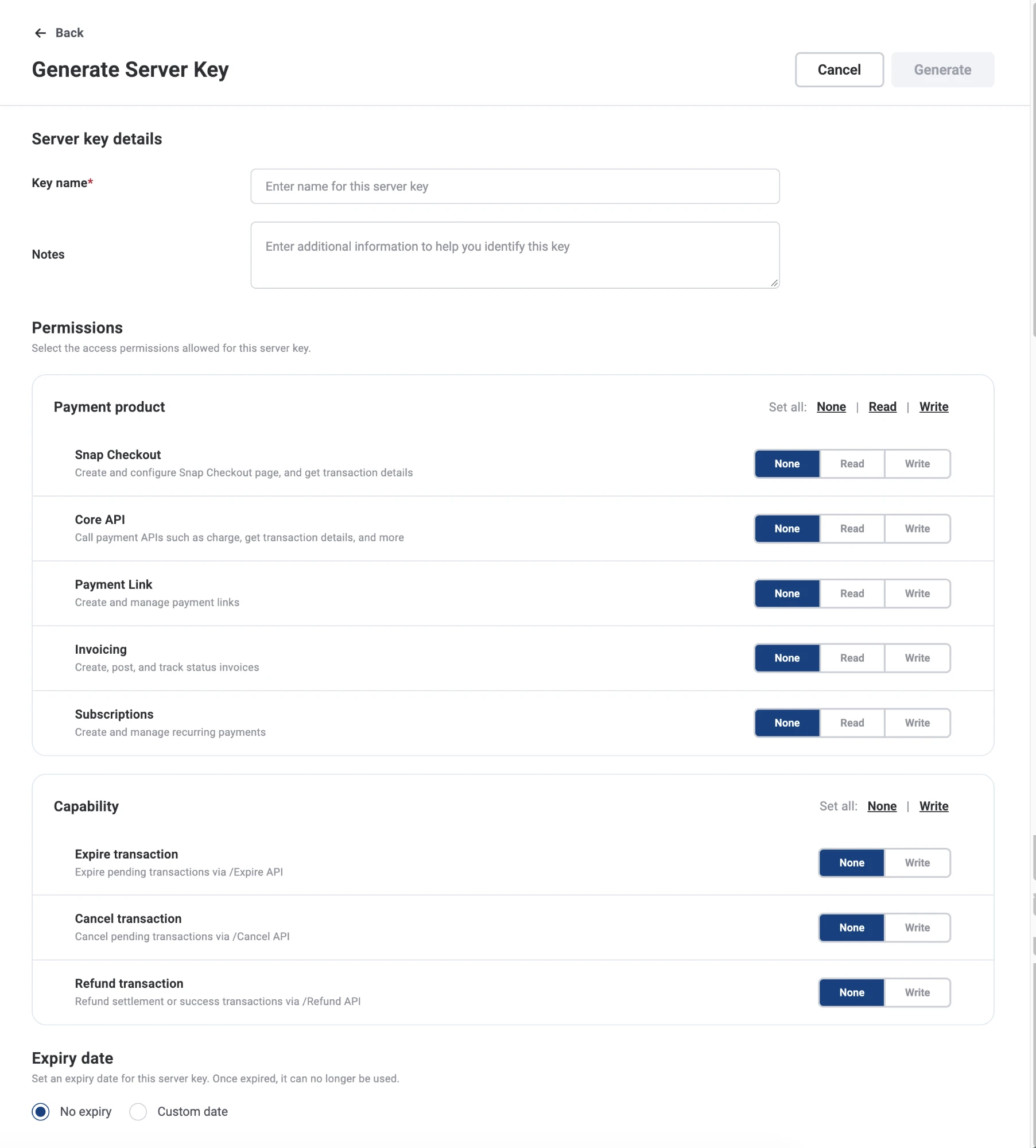
Generate Server Key page with key details, permissions, and expiry date
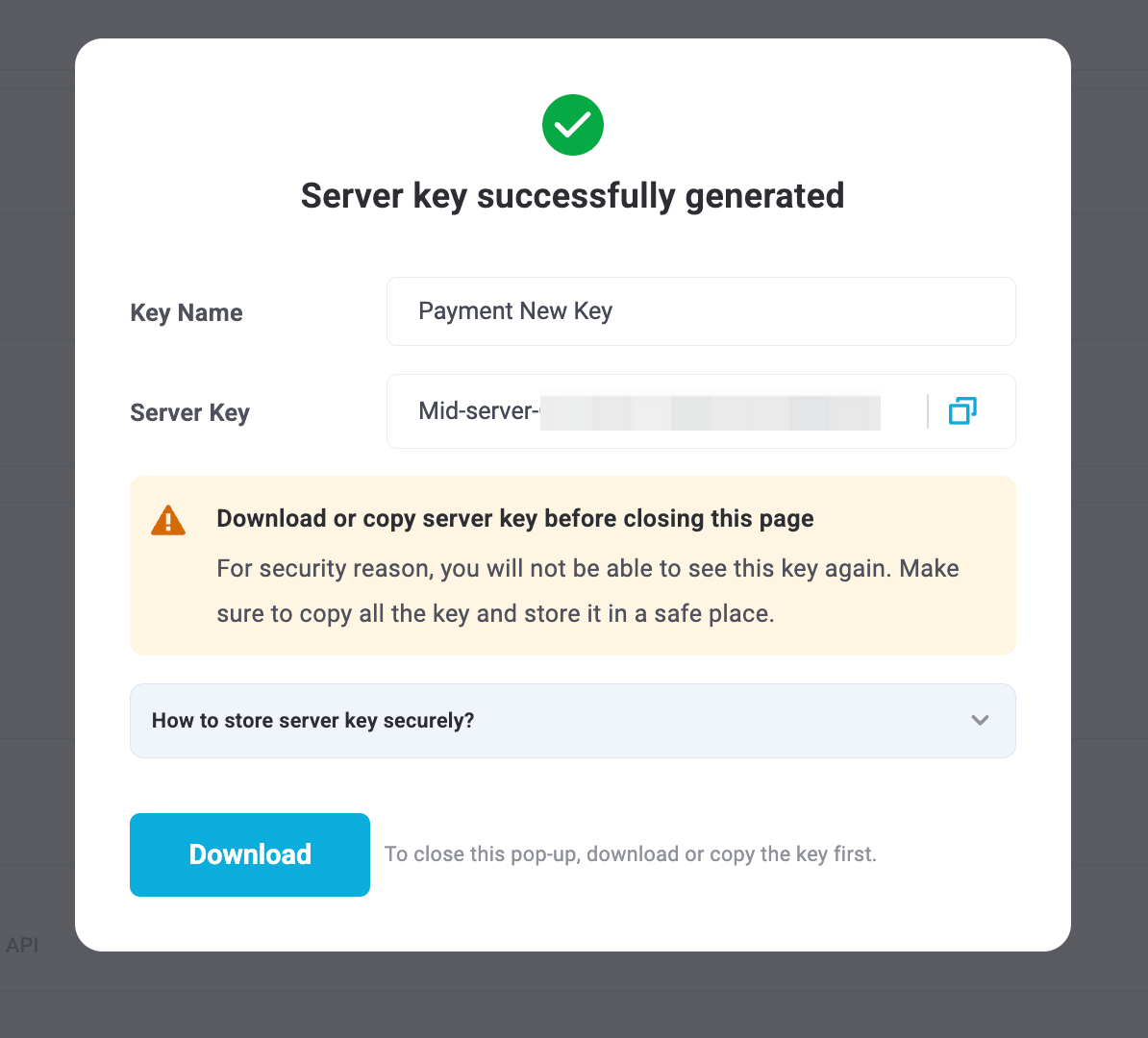
Pop-up that shows the new Server Key once
A Server Key is shown only onceFor security, you cannot view a Server Key again after you close the pop-up. If you lose a Server Key, generate a new one, update your system to use it, and then revoke the old key.
Give each key only the permissions it needsFor example, if a key only checks transaction status, give it Read access only. If a key with limited permissions leaks, the damage is also limited.
If a key calls an API that it has no permission for, Midtrans rejects the request with HTTP status 403 Forbidden. To fix this, give the key the missing permission, or use a different key.
View Server Key details
Click a key name in the Server Keys table. The details panel shows the Created date, Expiry date, Created by, Status, Notes, and the permissions of the key. The panel does not show the key value.
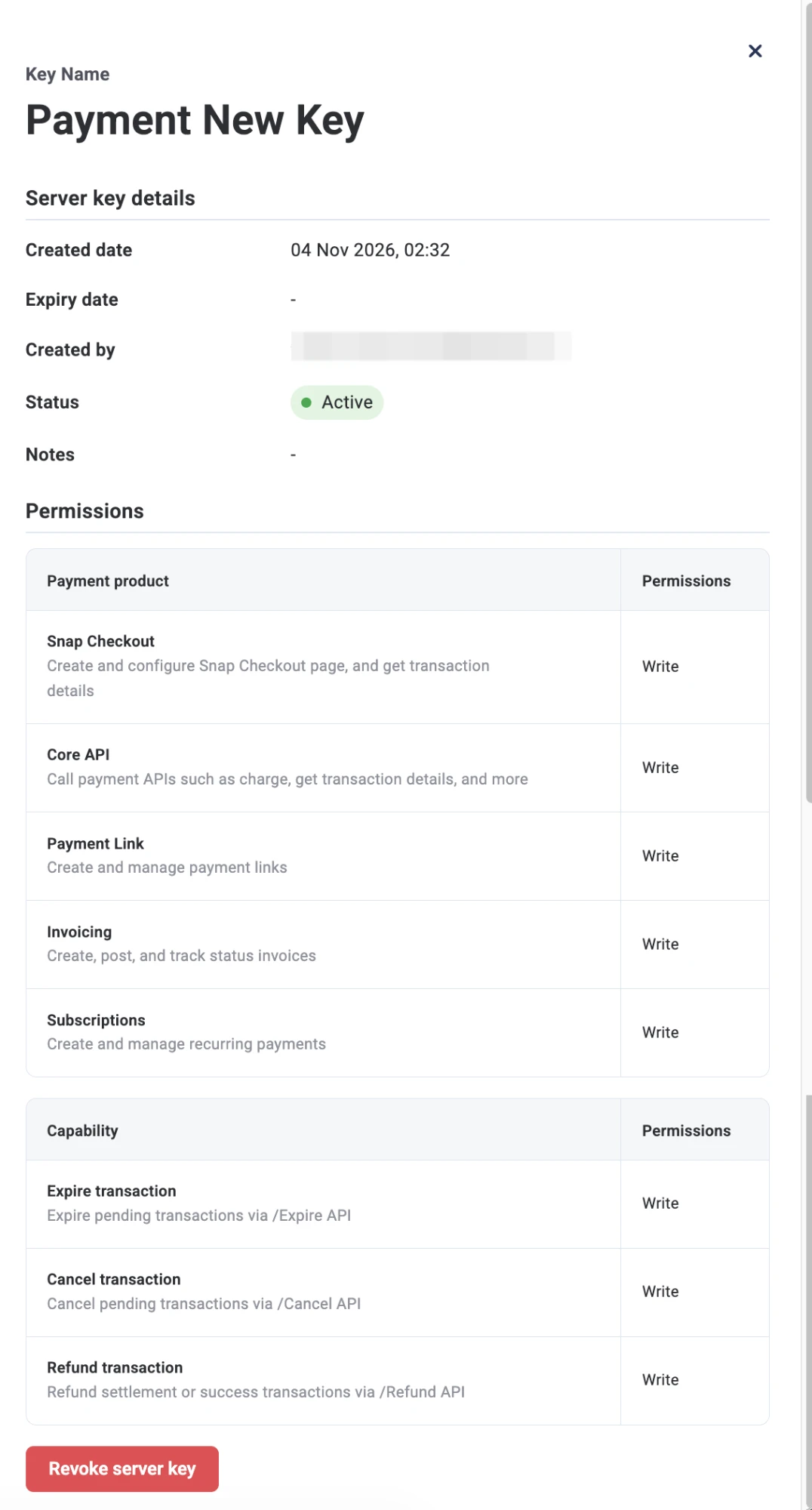
Server Key details panel with permissions and the Revoke server key button
Revoke a Server Key
- Do one of these steps:
- In the Server Keys table, click ⋯ in the Action column, then select Revoke.
- Open the key details, then click Revoke server key.
- Confirm. If 2FA is active on your user profile, enter the 6-digit code from Google Authenticator.
When you revoke a key, Midtrans immediately rejects all API requests that use it. You cannot undo this action.
Replace a Server Key without downtime
- Generate a new Server Key.
- Deploy the new key to all your systems.
- Make sure that your API traffic uses the new key.
- Revoke the old key.
Signature Secret Key
Midtrans adds a signature_key field to each HTTP(S) notification and to some API responses. Use it to make sure that the notification came from Midtrans. Calculate the expected value on your server and compare it with the value that you received:
SHA512(order_id + status_code + gross_amount + SignatureSecretKey)Before 28 October 2026, this calculation used your Server Key. It now uses the Signature Secret Key. For more information, see HTTP(S) Notification / Webhooks.
Signature Secret Key andsignature_keyare differentThe Signature Secret Key is the secret that you use in the calculation. The
signature_keyfield in a notification is the result of the calculation.
To see the key, click the eye icon next to Signature Secret Key. To rotate it, click Regenerate. After you regenerate it, Midtrans signs new notifications with the new key.
Accept both keys for a short time after you regenerateAfter you regenerate the key, you can still receive notifications that were signed with the old key. This happens mostly when Midtrans retries a notification that it first sent before the change. If your handler accepts only the new key, it rejects these retries.
To rotate safely:
- Update your notification handler to accept a signature that matches either the old or the new Signature Secret Key.
- Click Regenerate, then add the new key to your configuration.
- When you no longer receive notifications signed with the old key, remove the old key from your handler.
Client Key
You have one Client Key. To see it, click the eye icon next to Client Key. To rotate it, click Regenerate.
The old Client Key stops working immediatelyAfter you regenerate the Client Key, requests that use the old key fail, for example the Snap.js pop-up and card tokenization. Update your frontend (for example, the
data-client-keyattribute of Snap.js) and your mobile apps with the new key at once. Users of a mobile app version that still has the old key cannot pay until they update the app. Plan the rotation before you click Regenerate.
Security
Two-factor authentication (2FA)
If 2FA (Google Authenticator) is active on your user profile, you must enter the 6-digit code from your authenticator app before you can:
- See the Signature Secret Key or the Client Key.
- Regenerate the Signature Secret Key or the Client Key.
- Generate a Server Key.
- Revoke a Server Key.
Email alerts
Each time someone generates or revokes a Server Key, Midtrans sends an email to all users on your account who have the Admin or Developer role. In Sandbox, users with the Sandbox Developer role also get the email. The email shows the key name, the user who made the change, and the time.
If you get an alert for a change that you did not make, revoke the key immediately and contact [email protected].
For merchants who integrated before 28 October 2026
-
Your current integration continues to work. Your existing Server Key is in the Server Keys table with the name
<Merchant ID>-DEFAULT-PAYMENT-CLIENT. Your Signature Secret Key has the same value as this key, so you do not need to change your notification verification code yet. -
You cannot view your existing Server Key in the dashboard anymore. If you do not have it, generate a new Server Key, update your system, and then revoke the old key.
-
When you generate a new Server Key and use it, or regenerate the Signature Secret Key, your Server Key and Signature Secret Key become different. After that:
- Use the Server Key to authorize API requests.
- Use the Signature Secret Key to verify the
signature_keyin notifications.
If your notification handler still calculates the signature with the Server Key, the check fails. Update the handler to use the Signature Secret Key.
Official libraries and CMS pluginsThe official Midtrans language libraries and CMS plugins (WooCommerce, Magento, WHMCS, WordPress Easy Digital Downloads, and others) do not use
signature_keyto verify notifications. They get the transaction status from Midtrans directly, so this change does not affect them. If you use your own notification handler or a third-party platform, check how it verifies notifications.
FAQ
Can I see my old Server Key again?
No. A Server Key is shown only once, when you generate it. If you lost it, generate a new key and revoke the old one.
My notification signature check started to fail. Why?
Your Server Key and Signature Secret Key are probably different now. Calculate the signature with the Signature Secret Key, not the Server Key.
My API request returns 403 Forbidden. Why?
The Server Key that you use does not have permission for that API. Open the key details to check its permissions, or use a key that has the permission.
Should I use a different Server Key for each system?
It is recommended. If each service or environment has its own key, you can revoke one key without affecting the others.
Payment BI SNAP
This section allows you to set up Bank Indonesia's SNAP integration. See this docs for complete detail on how to integrate to BI SNAP.
Updated 19 days ago