
This guide explains how to submit your MiniApp version for release, apply for approval, and officially launch it through the GoPay MiniApp Portal
Quick Start: Follow the bold actions to quickly release your MiniApp version. You can do this automatically in VS Code or manually in the portal. The manual steps are optional, skip them if you’ve already released via VS Code.
1. Submit your MiniApp for Release
There are two ways to release:
-
Release via VSCode
If you've followed the previous steps and click "release" you may skip this steps or click here for next steps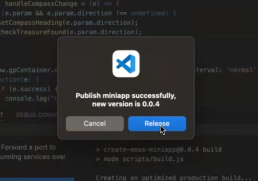
-
Release via GoPay MiniApp Portal
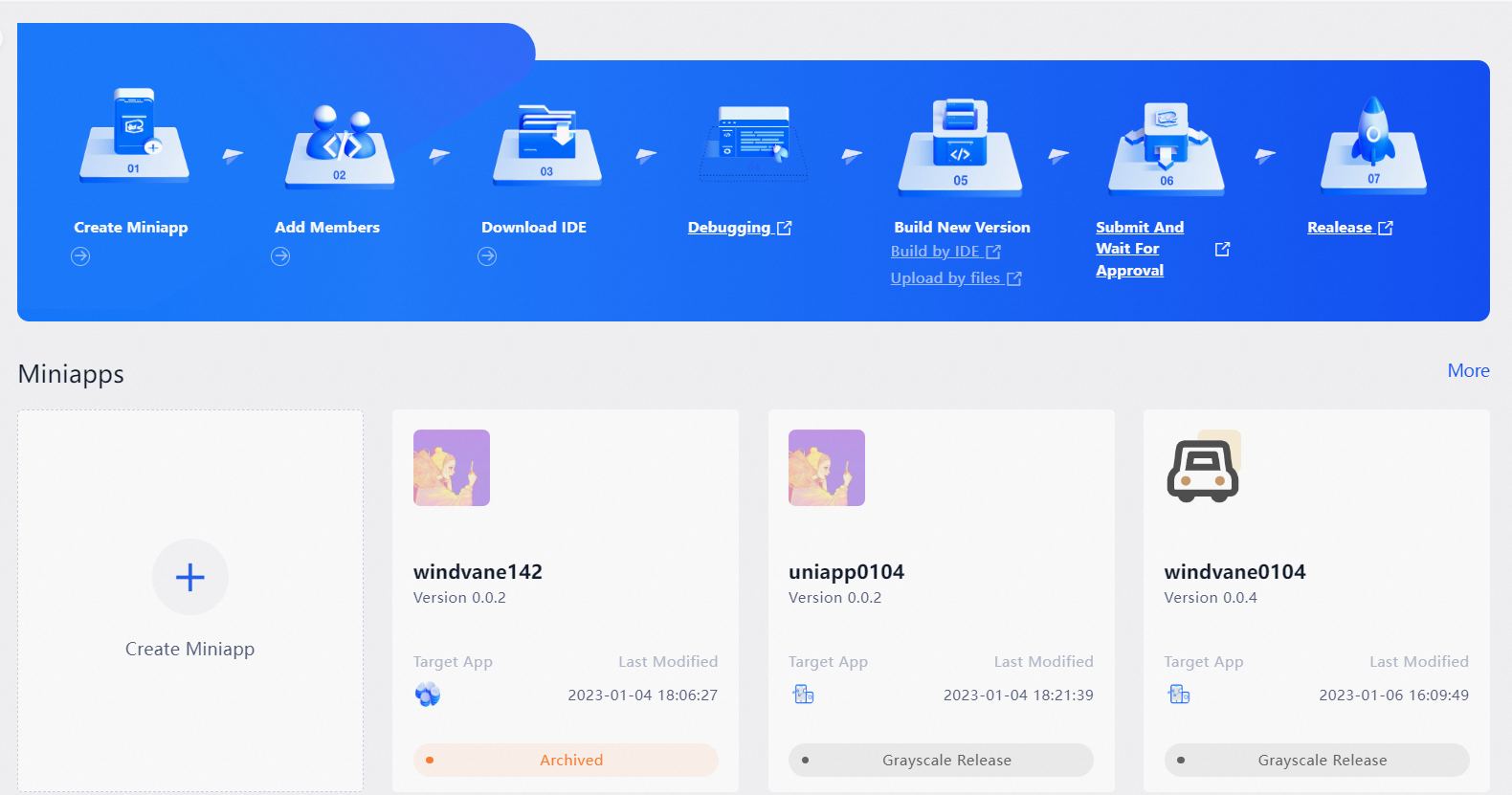
Login to the GoPay MiniApp Portal,-
Select your MiniApp
-
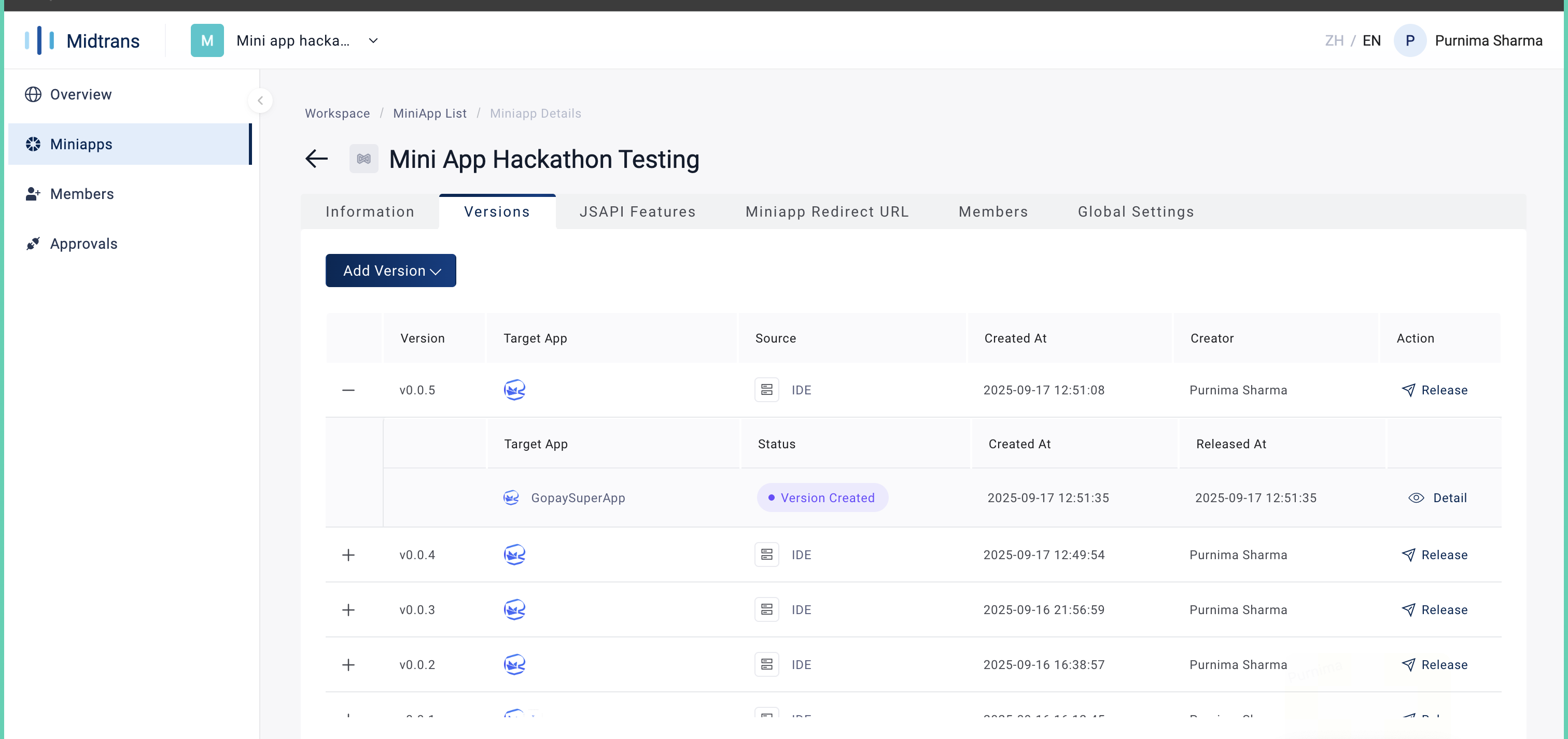
Open the Versions tab, and click "Release
-
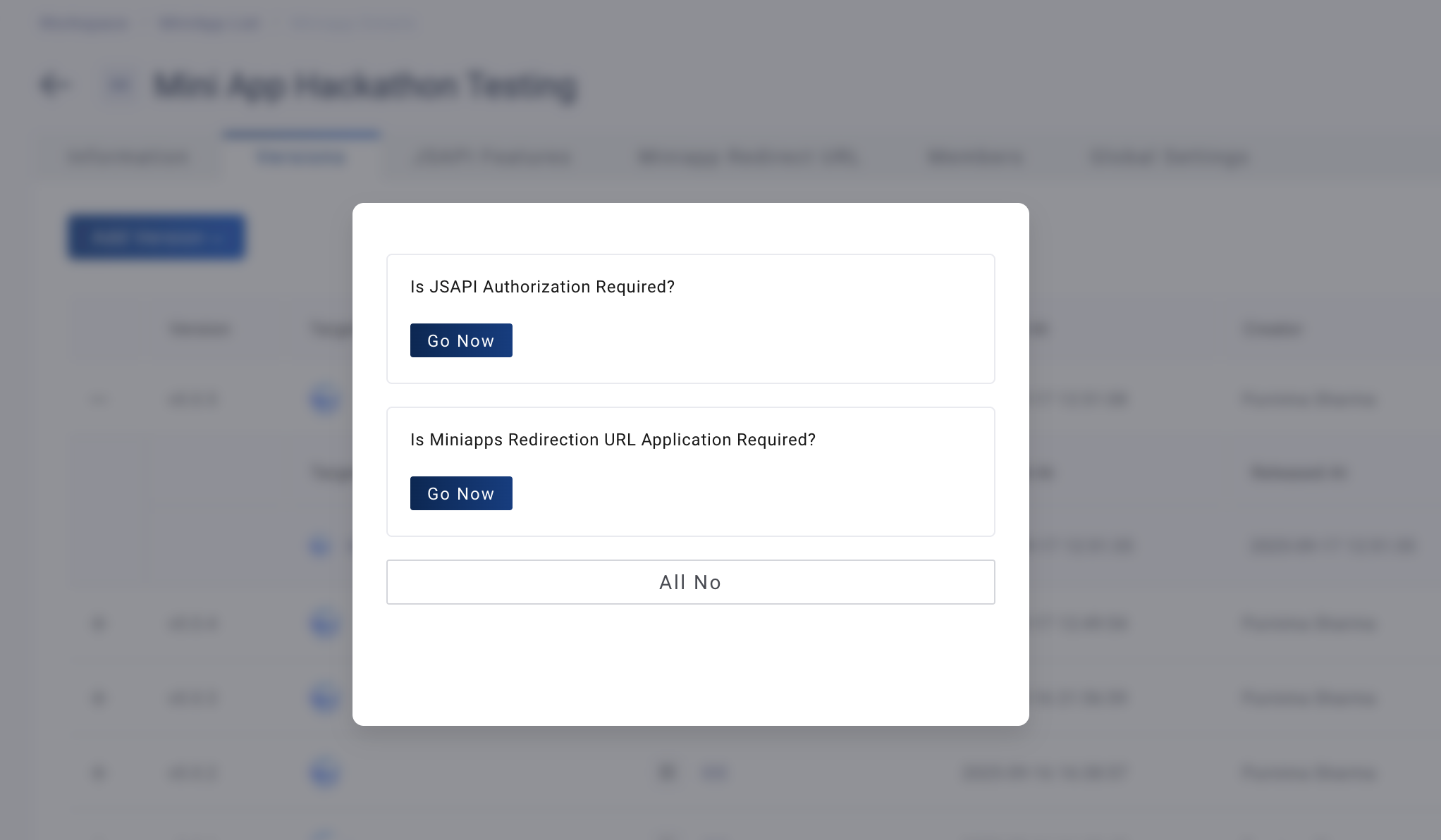
Click "All No
-
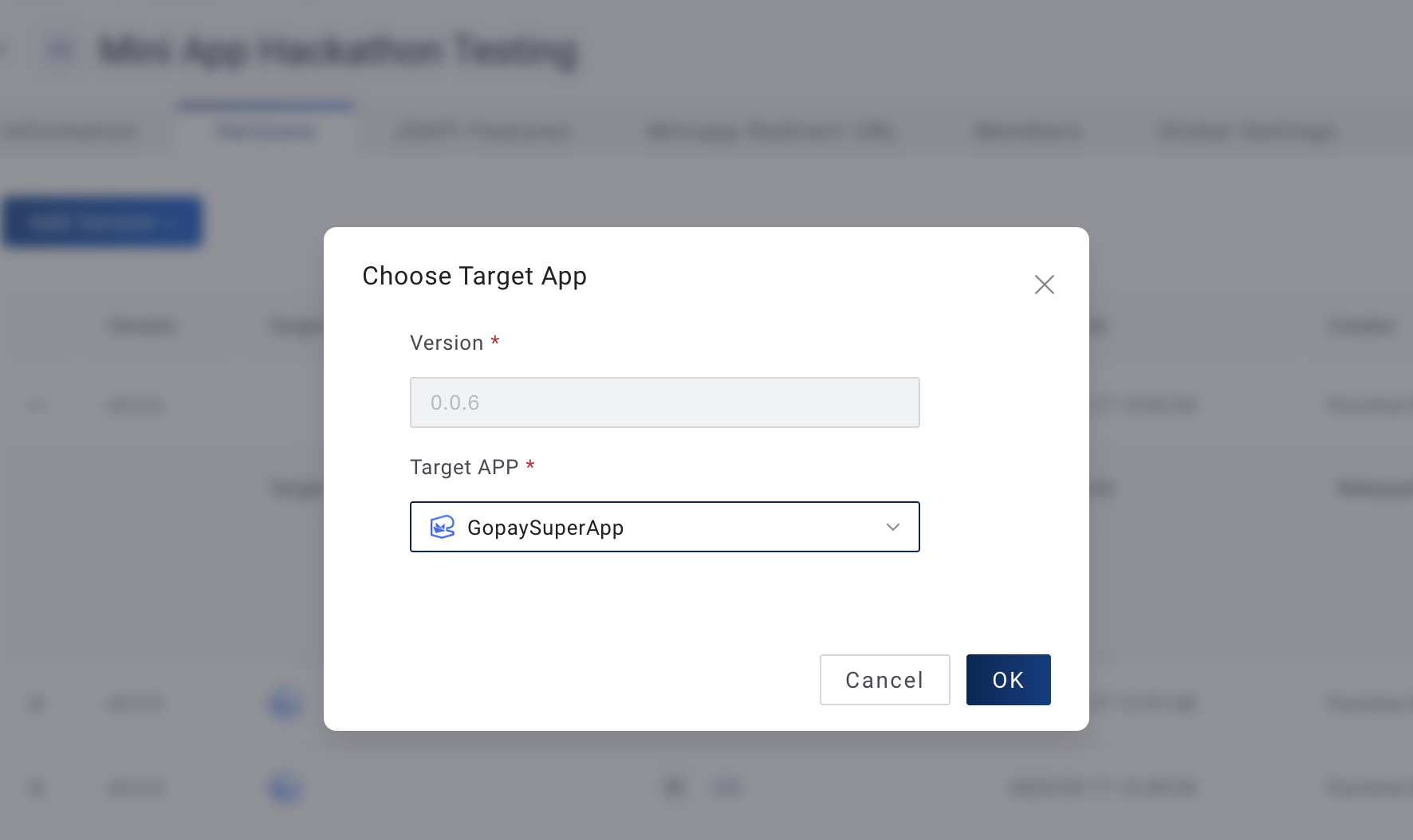
Choose the target app for release
-
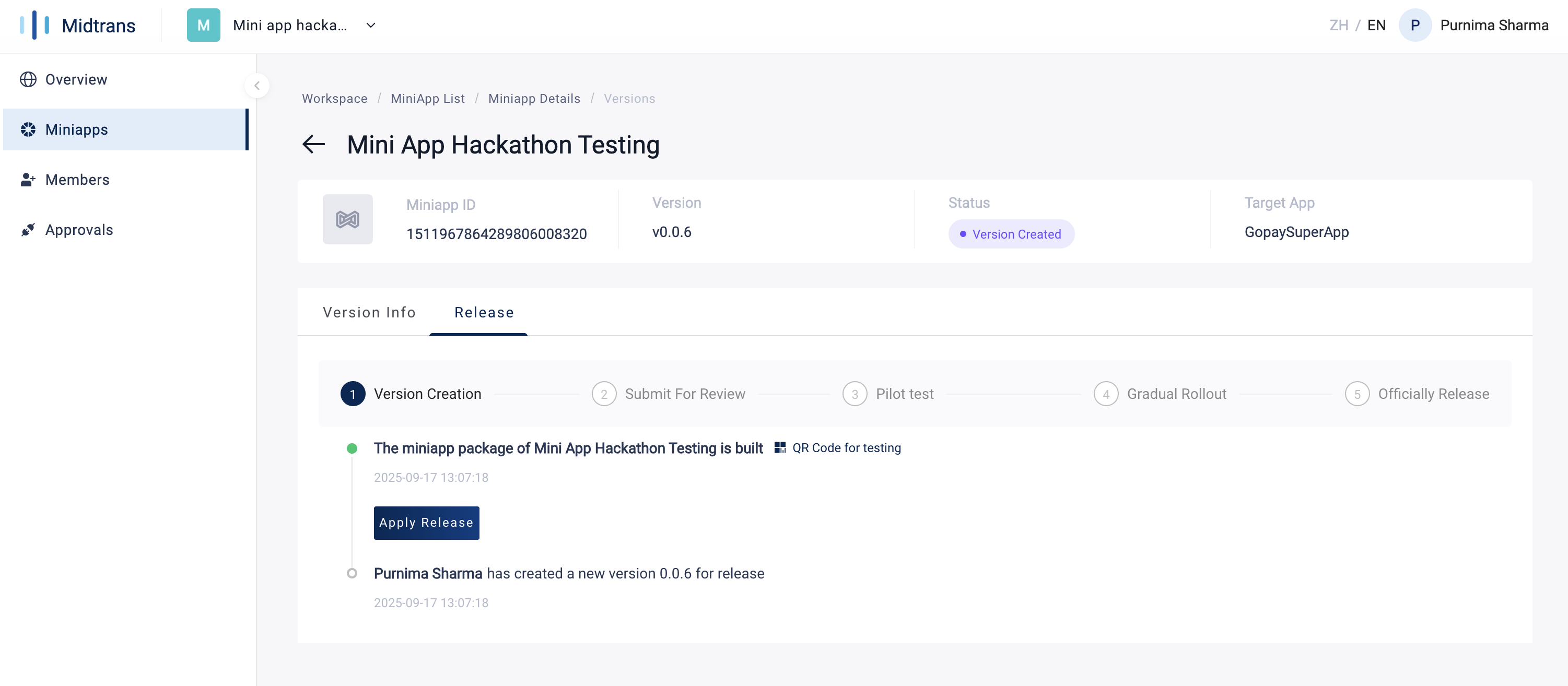
The figure below shows the MiniApp in the Version Creation phase
-
2. Apply for Release your MiniApp
Prerequisite: You can request a release only after Submit your MiniApp for Release is completed.
-
Login to the GoPay MiniApp Portal, select your MiniApp, go to the Versions tab, and click "Detail"
-
In Version Creation, please follow the steps below
Note: This QR will not work, to test your miniapp please refer here-
Click "Apply Release"
-
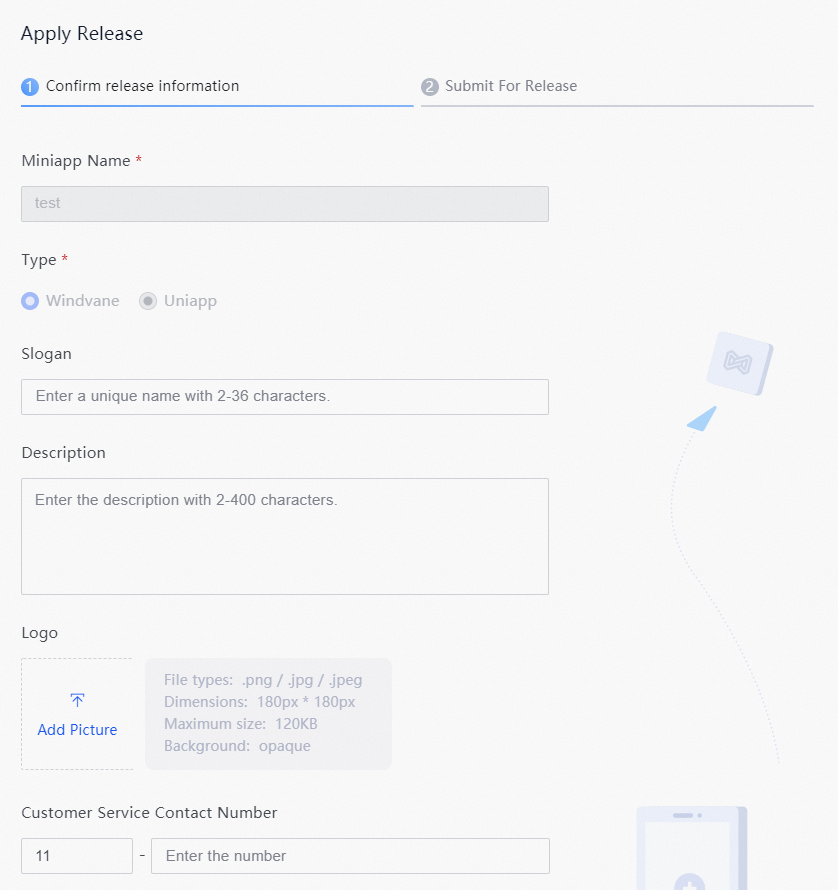
Review the Confirm Release Information and click "OK"
-
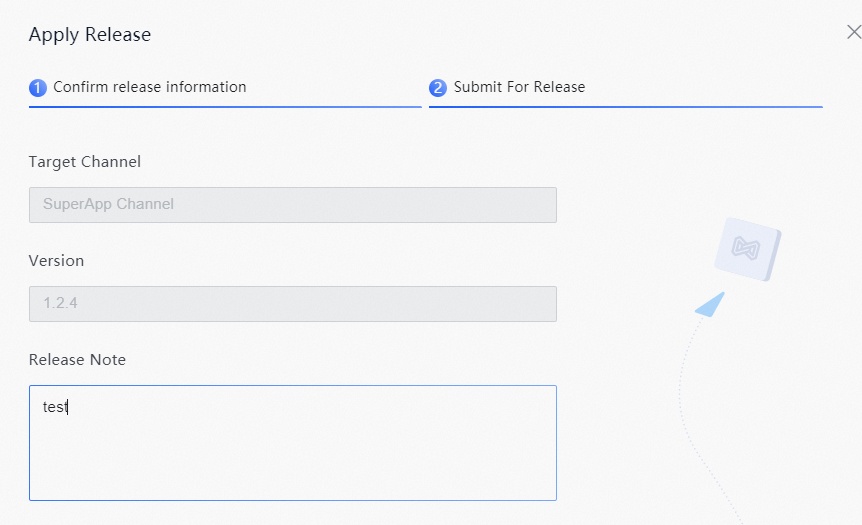
Review the Submit for Release panel and click "OK"
-
-
In Submit for Review, wait for approval from the target app administrator. You may contact support team if needed.
3. Officially Release your MiniApp
Prerequisite: You can release a version only after Request Release of your MiniApp is approved.
-
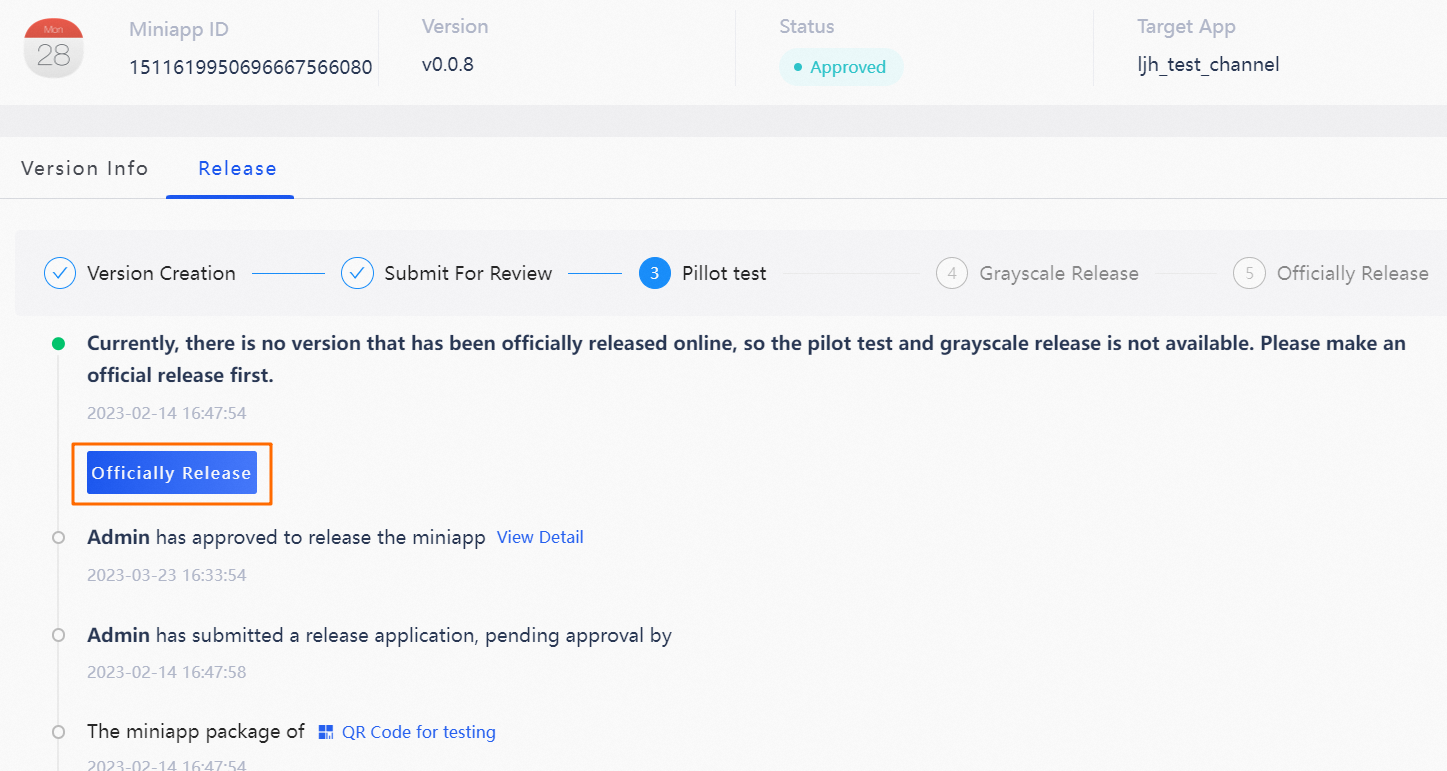
Release for the first time
For the first release, you may only do official release.-
In Pilot test, Click "Officially Release
-
In the pop-up, click "OK" to complete
-
-
Release after the first time
For Subsequent releases, you can do a whitelist test, a canary release, then official release (or go straight to official release).
-
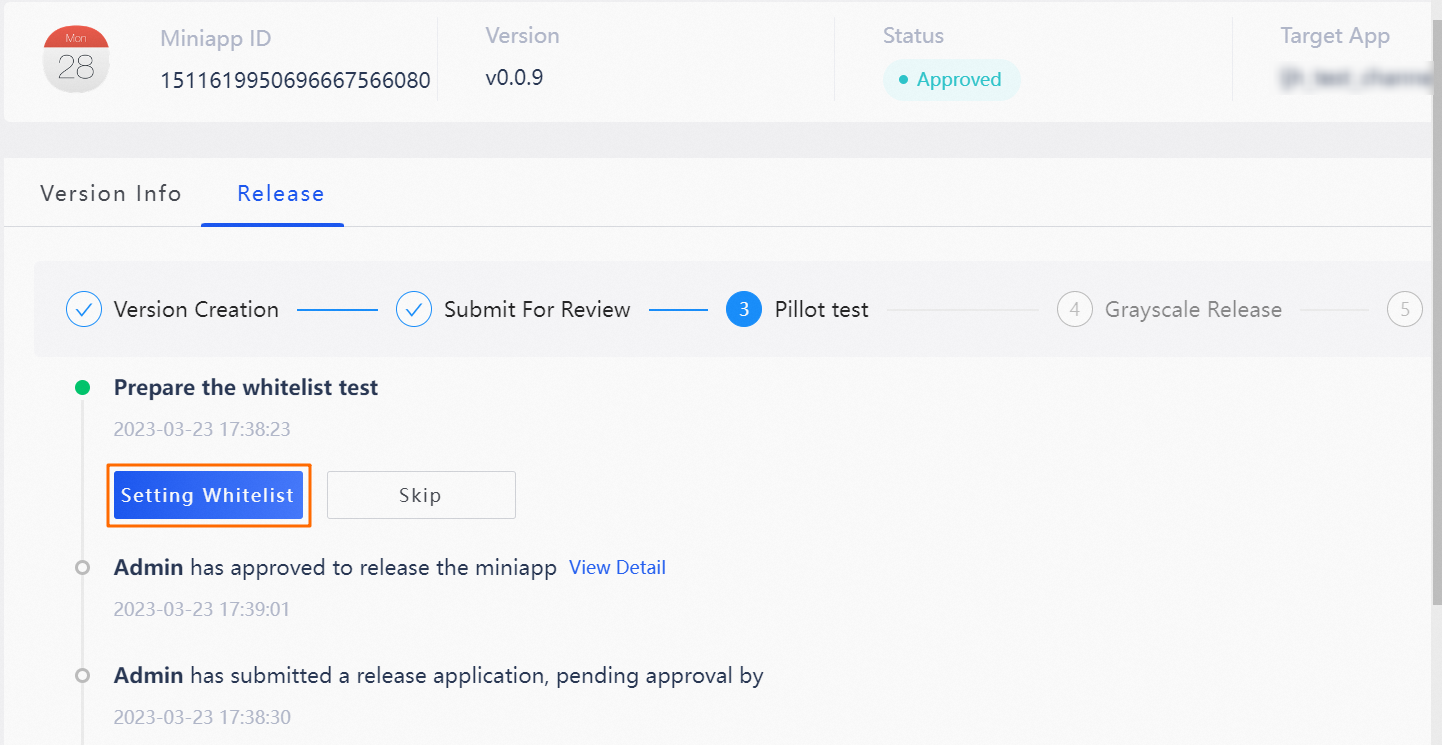
(Optional) Whitelisting test
-
On the Release tab, click Setting Whitelist
-
Add user IDs
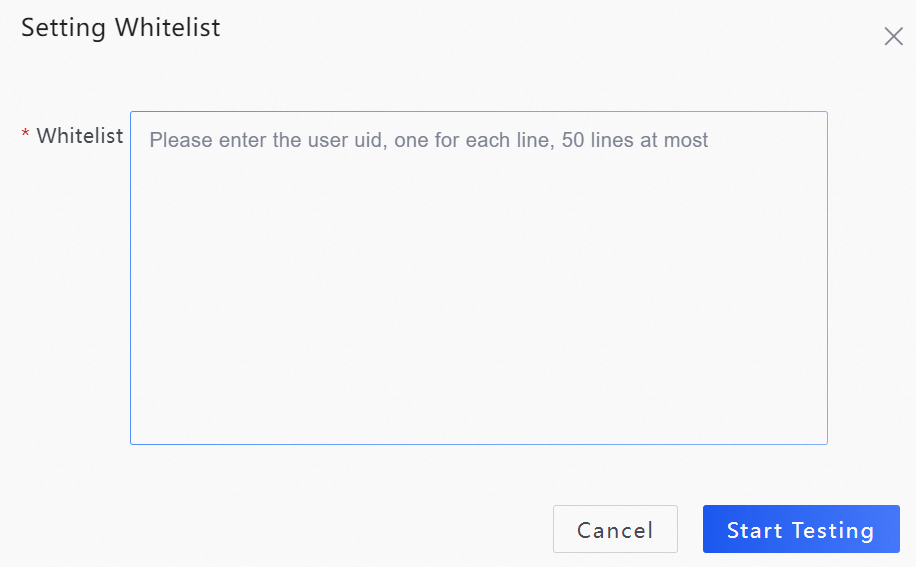
- Click Start Testing
-
-
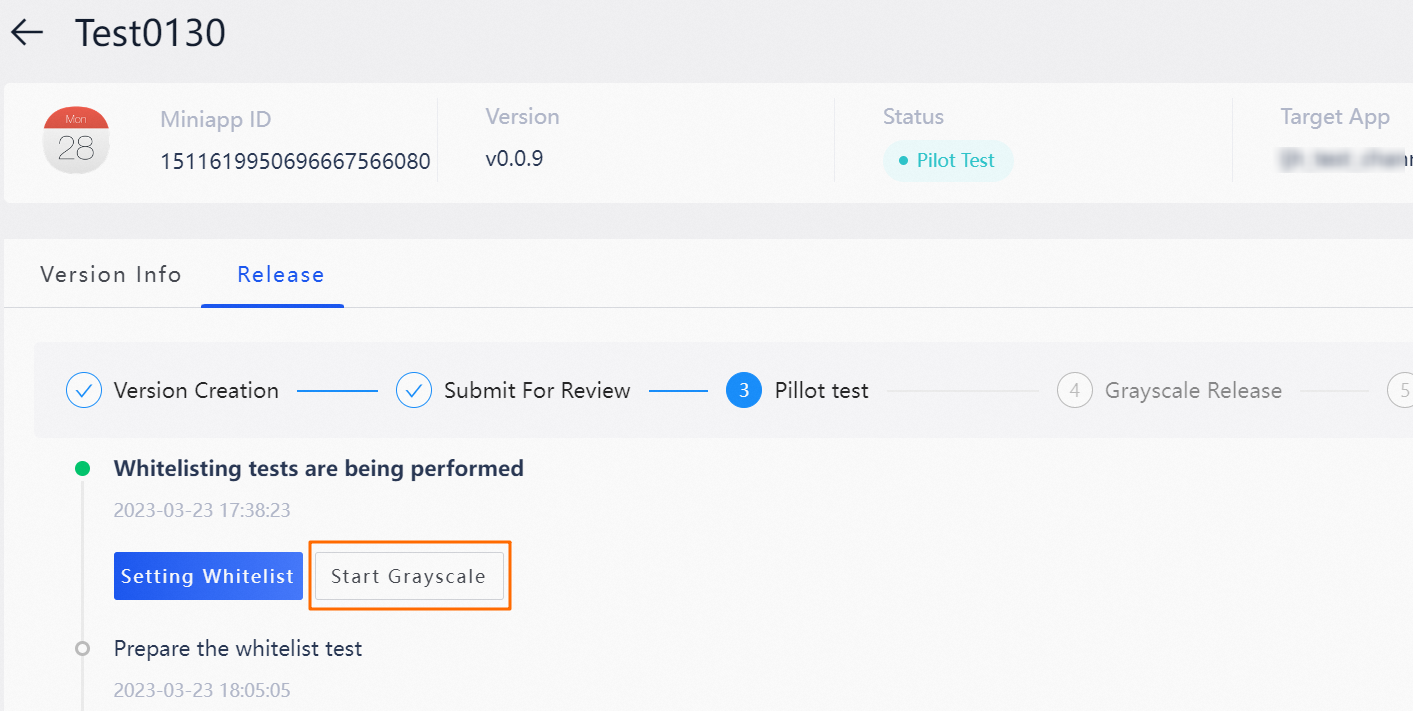
(Optional) Canary release
After the canary release is started, the official release can be started when user feedback and actual business operation results meet expectations.-
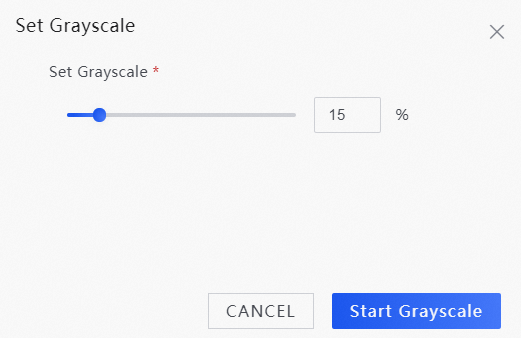
On the Release tab, click Set Grayscale
-
In set Grayscale, specify the canary release ratio
-
Click Start Grayscale
-
-
Official Release
After the canary release is started, the official release can be started when user feedback and actual business operation results meet expectations.
Note: Releasing a new version automatically archives the previous version.-
In Pilot test, Click "Officially Release"
-
In the pop-up, click "OK" to complete
-