
This guide explains how merchants with an existing Snap Checkout integration can enable payments within MiniApp.
Important: Payment Requirements
- Payments are production-only. Sandbox payments are not supported and will redirect to a browser.
- Payments can only be tested in the GoPay app — browser/local testing is not supported.
- Seamless Login must be enabled globally for GoPay Order History deeplinks.
| Integration Needed | Details |
|---|---|
| Mini App Frontend | Display Snap payment page on frontend |
| Mini App Backend | Acquire Snap transaction token on your backend |
Sequence Diagram:
Mini app payments Flow diagram
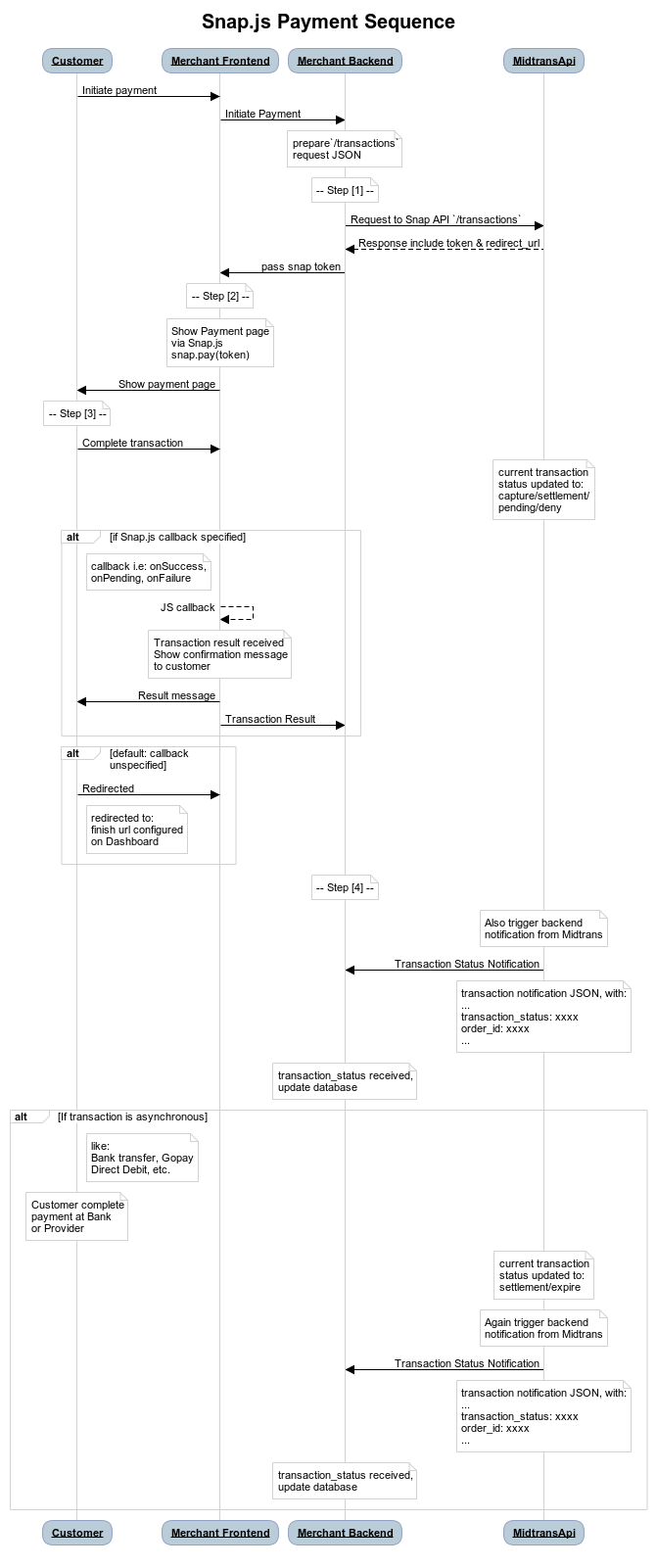
1. User Initiate Order
- The user decides to place an order in the mini app front end process for order.
2. [SNAP-CHECKOUT API] Acquiring Transaction Token on Backend
- Merchant mini app frontend to call their own backend to retrieve transaction token
3: [SNAP-CHECKOUT API] Displaying Snap Payment Page on Frontend
- Merchant mini app to display snap payment page
4: [SNAP-CHECKOUT API] Notify
- Once the payment is complete. Super App backend will notify the Mini App Backend by v1.0/debit/notify
- The contract for the api can be found here.
New GoPay Merchants:
If you have not integrated with GoPay or have integrated without following the SNAP-CHECKOUT API convention, the following points apply :
- You must first onboard SNAP-CHECKOUT API convention following below integration steps
Existing GoPay Merchants:
If you have already integrated with GoPay and follow the SNAP-CHECKOUT API convention, the following points apply :
- There is no change in the already integrated SNAP-CHECKOUT API
- For Obtain Transaction Token request, the new object in the existing contract needs to be added under gopay.pop_id. The value for this is shared by the GoPay Team in the MiniApp Workbook sent via email.
1. Acquiring Transaction Token on Backend
API request should be done from merchant backend to acquire Snap transaction token by providing payment information and Server Key. There are at least three components that are required to obtain the Snap token which are explained in the table given below.
| Element | Description |
|---|---|
Server Key | API server key. For more details, refer to Retrieving API Access Keys |
order_id | Unique transaction order ID, defined from your side. One ID could be used only once for the order of the material. Allowed character are Alphanumeric, dash(-), underscore(_), tilde (~), and dot (.) String, max 50. |
gross_amount | Total amount of transaction, defined from your side. Integer. When creating 1st transaction, the gross_amount is still required. |
Charge API Sample Request
Endpoints
| Environment | Method | URL |
|---|---|---|
| Sandbox | POST | https://app.sandbox.midtrans.com/snap/v1/transactions |
| Production | POST | https://app.midtrans.com/snap/v1/transactions |
HTTP Headers
| Accept | application/json |
| Content-Type | application/json |
| Authorization | Basic AUTH_STRING |
AUTH_STRING: Base64Encode("YourServerKey"+":")
Midtrans API validates HTTP request by using Basic Authentication method. The username is your Server Key while the password is empty. The authorization header value is represented by AUTH_STRING. AUTH_STRING is base-64 encoded string of your username and password separated by colon symbol (:). For more details, refer to API Authorization and Headers.
GoPay Object
"gopay": {
  "pop_id": "990407c8-7c2b-4998-8ef8-0bc67c0c6c55"
}| Parameter | Description |
|---|---|
| pop_id | For MiniApp payments, this parameter is mandatory to determine the Point of Purchase (POP). |
Sample Request
curl --location --request POST 'https://app.midtrans.com/snap/v1/transactions' \
--header 'Content-Type: application/json' \
--header 'Authorization: Basic auth' \
--data '{
    "transaction_details": {
        "order_id": "test-123",
        "gross_amount": 100000
    },
    "gopay": {
        "pop_id": "<pop_id>"
    },
    "callbacks": {
        "finish": "https://www.google.com",
        "error": "https://www.facebook.com"
    }
}'
/*Install Midtrans PHP Library (https://github.com/Midtrans/midtrans-php)
composer require midtrans/midtrans-php
Alternatively, if you are not using **Composer**, you can download midtrans-php library
(https://github.com/Midtrans/midtrans-php/archive/master.zip), and then require
the file manually.
require_once dirname(__FILE__) . '/pathofproject/Midtrans.php'; */
//SAMPLE REQUEST START HERE
// Set your Merchant Server Key
\Midtrans\Config::$serverKey = 'YOUR_SERVER_KEY';
// Set to Development/Sandbox Environment (default). Set to true for Production Environment (accept real transaction).
\Midtrans\Config::$isProduction = false;
// Set sanitization on (default)
\Midtrans\Config::$isSanitized = true;
// Set 3DS transaction for credit card to true
\Midtrans\Config::$is3ds = true;
$params = array(
'transaction_details' => array(
'order_id' => rand(),
'gross_amount' => 10000,
),
'customer_details' => array(
'first_name' => 'budi',
'last_name' => 'pratama',
'email' => '[email protected]',
'phone' => '08111222333',
),
);
$snapToken = \Midtrans\Snap::getSnapToken($params);/*Install midtrans-client (https://github.com/Midtrans/midtrans-nodejs-client) NPM package.
npm install --save midtrans-client*/
//SAMPLE REQUEST START HERE
const midtransClient = require('midtrans-client');
// Create Snap API instance
let snap = new midtransClient.Snap({
// Set to true if you want Production Environment (accept real transaction).
isProduction : false,
serverKey : 'YOUR_SERVER_KEY'
});
let parameter = {
"transaction_details": {
"order_id": "YOUR-ORDERID-123456",
"gross_amount": 10000
},
"credit_card":{
"secure" : true
},
"customer_details": {
"first_name": "budi",
"last_name": "pratama",
"email": "[email protected]",
"phone": "08111222333"
}
};
snap.createTransaction(parameter)
.then((transaction)=>{
// transaction token
let transactionToken = transaction.token;
console.log('transactionToken:',transactionToken);
})/*Install midtrans-java (https://github.com/Midtrans/midtrans-java) library.
If you are using Maven as the build automation tool for your project,
please add the following dependency to your project's build definition (pom.xml).
<dependencies>
<dependency>
<groupId>com.midtrans</groupId>
<artifactId>java-library</artifactId>
<version>3.0.0</version>
</dependency>
</dependencies>
If you are using Gradle as the build tool for your project,
please add the following dependency to your project's build definition (build.gradle).
dependencies {
implementation 'com.midtrans:java-library:3.0.0'
}
You can also check the functional test
(https://github.com/Midtrans/midtrans-java/blob/master/library/src/test/java/com/midtrans/java/CoreApiTest.java) for more examples.
*/
//SAMPLE REQUEST START HERE
import com.midtrans.Midtrans;
import com.midtrans.httpclient.SnapApi;
import com.midtrans.httpclient.error.MidtransError;
import java.util.HashMap;
import java.util.Map;
import java.util.UUID;
import org.json.JSONObject;
public class MidtransExample {
public static void main(String[] args) throws MidtransError {
// Set serverKey to Midtrans global config
Midtrans.serverKey = "YOUR_SERVER_KEY";
// Set value to true if you want Production Environment (accept real transaction).
Midtrans.isProduction = false;
// Create params JSON Raw Object request
public Map<String, Object> requestBody() {
UUID idRand = UUID.randomUUID();
Map<String, Object> params = new HashMap<>();
Map<String, String> transactionDetails = new HashMap<>();
transactionDetails.put("order_id", idRand);
transactionDetails.put("gross_amount", "265000");
Map<String, String> creditCard = new HashMap<>();
creditCard.put("secure", "true");
params.put("transaction_details", transactionDetails);
params.put("credit_card", creditCard);
return params;
}
// Create Token and then you can send token variable to FrontEnd,
// to initialize Snap JS when customer click pay button
String transactionToken = SnapApi.createTransactionToken(requestBody())
}
}
#Install midtransclient(https://github.com/Midtrans/midtrans-python-client) PIP package
#pip install midtransclient

#SAMPLE REQUEST START HERE

import midtransclient
# Create Snap API instance
snap = midtransclient.Snap(
    # Set to true if you want Production Environment (accept real transaction).
    is_production=False,
    server_key='YOUR_SERVER_KEY'
)
# Build API parameter
param = {
    "transaction_details": {
        "order_id": "test-transaction-123",
        "gross_amount": 200000
    }, "credit_card":{
        "secure" : True
    }, "customer_details":{
        "first_name": "budi",
        "last_name": "pratama",
        "email": "[email protected]",
        "phone": "08111222333"
    }
}

transaction = snap.create_transaction(param)

transaction_token = transaction['token']
/*Import Midtrans Go module package to your project. Via terminal:
go get -u github.com/midtrans/midtrans-go
and/or on your project code:
import (
"github.com/midtrans/midtrans-go"
"github.com/midtrans/midtrans-go/coreapi"
"github.com/midtrans/midtrans-go/snap"
"github.com/midtrans/midtrans-go/iris"
)*/
//SAMPLE REQUEST START HERE
// 1. Initiate Snap client
var s = snap.Client
s.New("YOUR-SERVER-KEY", midtrans.Sandbox)
// Use to midtrans.Production if you want Production Environment (accept real transaction).
// 2. Initiate Snap request param
req := & snap.RequestParam{
TransactionDetails: midtrans.TransactionDetails{
OrderID: "YOUR-ORDER-ID-12345",
GrossAmt: 100000,
},
CreditCard: &snap.CreditCardDetails{
Secure: true,
},
CustomerDetail: &midtrans.CustomerDetails{
FName: "John",
LName: "Doe",
Email: "[email protected]",
Phone: "081234567890",
},
}
// 3. Execute request create Snap transaction to Midtrans Snap API
snapResp, _ := s.CreateTransaction(req)For MiniApp payments, pop_id is mandatory. Transactions without pop_id may not be routed correctly within the MiniApp flow.
The pop_id (Point of Purchase ID) will be shared via email in the MiniApp Workbook document after requesting a new MiniApp creation.
Sample Response
{
  "token":"66e4fa55-fdac-4ef9-91b5-733b97d1b862",
  "redirect_url":"https://app.sandbox.midtrans.com/snap/v2/vtweb/66e4fa55-fdac-4ef9-91b5-733b97d1b862"
}
List of Response Code
| Status Code | Description | Example |
|---|---|---|
| 201 | Successful creation of Snap token. | "token":"66e4fa55-fdac-4ef9-91b5-733b97d1b862" |
| 401 | Failed to create a token, as wrong authorization is sent. | "Access denied, please check client or server key" |
| 4xx | Failed to create a token, as wrong parameter is sent. Follow the error_message and check your parameter. | "transaction_details.gross_amount is not equal to the sum of item_details" |
| 5xx | Failed to create a token, because of Midtrans internal error. Most of the time this is temporary, you can retry later. | "Sorry, we encountered internal server error. We will fix this soon." |
2. Displaying Snap Payment Page on Frontend
Javascript Method
Javascript Method
Tips
- If you are using frontend framework such as ReactJS and struggling to include the script tag, please refer to this recommendation.
- To ensure that Snap modal is displayed correctly on a mobile device, please include the viewport meta tag inside your
<head>tag. The most common implementation is as follows :<meta name="viewport" content="width=device-width, initial-scale=1">- Optionally, you can also use JavaScript callbacks to handle payment events triggered from customer finishing interaction with Snap payment page on frontend.
Include snap.js library into your payment page HTML. The table given below describes the components which are required to display Snap payment page.
| Element | Description |
|---|---|
| Client Key | The Client Key. For more details refer to Retrieving API Access Keys |
snap.js url | https://app.sandbox.midtrans.com/snap/snap.js |
transaction token | Retrieved from backend in previous step |
Enter your Client Key as the value of data-client-key attribute in snap.js script tag.
Pop Up Mode
Display the Snap Checkout modal by overlaying it over your page (pop up). Start the payment process by calling window.snap.pay with transaction token.
<html>
  <head>
    <meta name="viewport" content="width=device-width, initial-scale=1">
    <!-- @TODO: replace SET_YOUR_CLIENT_KEY_HERE with your client key -->
    <script type="text/javascript"
      src="https://app.sandbox.midtrans.com/snap/snap.js"
      data-client-key="SET_YOUR_CLIENT_KEY_HERE"></script>
    <!-- Note: replace with src="https://app.midtrans.com/snap/snap.js" for Production environment -->
  </head>

  <body>
    <button id="pay-button">Pay!</button>

    <script type="text/javascript">
      // For example trigger on button clicked, or any time you need
      var payButton = document.getElementById('pay-button');
      payButton.addEventListener('click', function () {
        // Trigger snap popup. @TODO: Replace TRANSACTION_TOKEN_HERE with your transaction token
        window.snap.pay('TRANSACTION_TOKEN_HERE');
        // customer will be redirected after completing payment pop-up
      });
    </script>
  </body>
</html>
<html>
<head>
<meta name="viewport" content="width=device-width, initial-scale=1">
<!-- @TODO: replace SET_YOUR_CLIENT_KEY_HERE with your client key -->
<script type="text/javascript"
src="https://app.sandbox.midtrans.com/snap/snap.js"
data-client-key="SET_YOUR_CLIENT_KEY_HERE"></script>
<!-- Note: replace with src="https://app.midtrans.com/snap/snap.js" for Production environment -->
</head>
<body>
<button id="pay-button">Pay!</button>
<script type="text/javascript">
// For example trigger on button clicked, or any time you need
var payButton = document.getElementById('pay-button');
payButton.addEventListener('click', function () {
// Trigger snap popup. @TODO: Replace TRANSACTION_TOKEN_HERE with your transaction token
window.snap.pay('TRANSACTION_TOKEN_HERE', {
onSuccess: function(result){
/* You may add your own implementation here */
alert("payment success!"); console.log(result);
},
onPending: function(result){
/* You may add your own implementation here */
alert("wating your payment!"); console.log(result);
},
onError: function(result){
/* You may add your own implementation here */
alert("payment failed!"); console.log(result);
},
onClose: function(){
/* You may add your own implementation here */
alert('you closed the popup without finishing the payment');
}
})
});
</script>
</body>
</html>Learn more about Snap's Javascript Callback here and Snap's Javascript optional parameters here..
After following the steps given above, the sample Snap page is displayed as shown below.
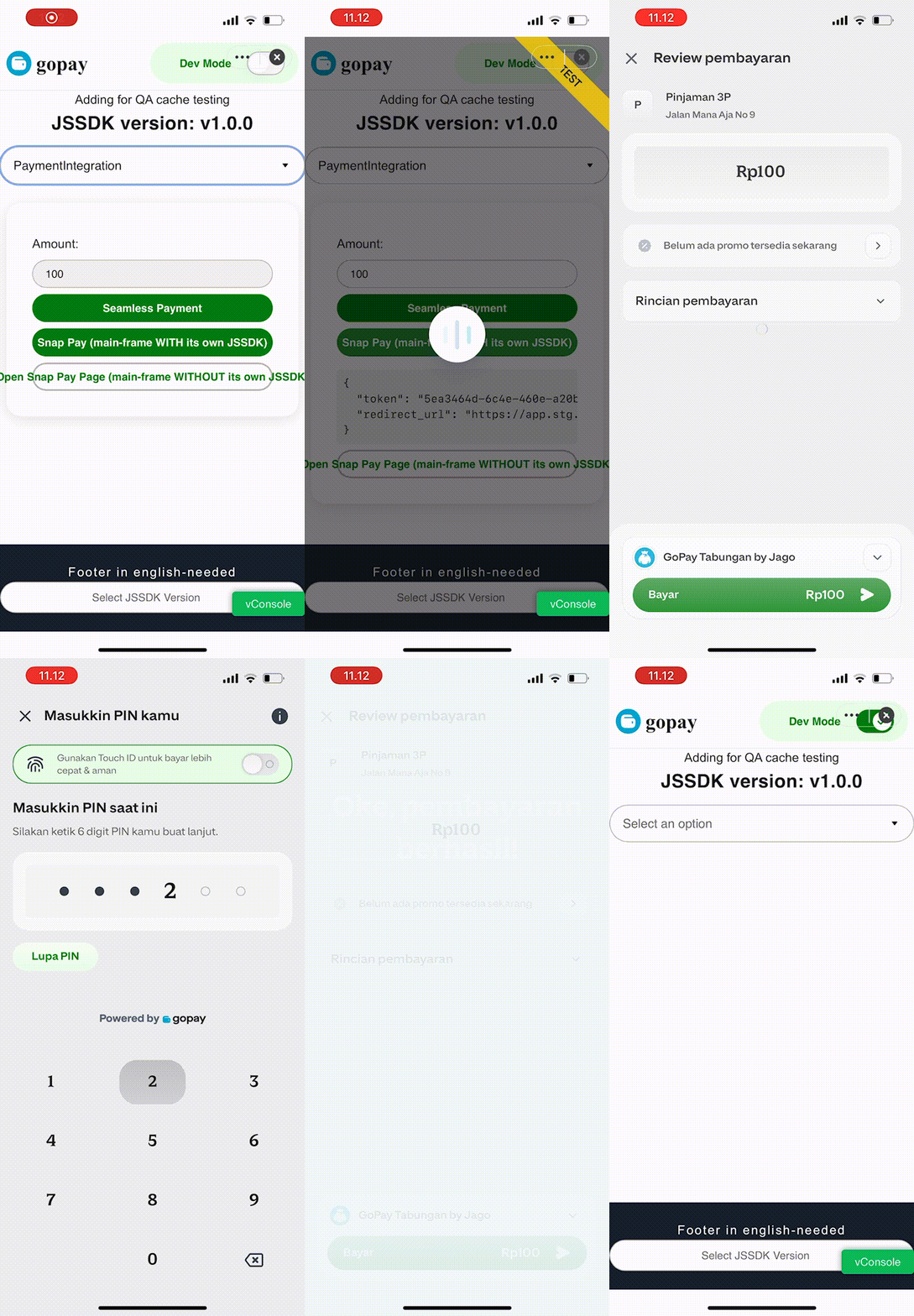
After the payment is completed, customer is redirected back to Finish URL. It is specified on callbacks object during Acquiring Transaction Token on Backend or via Midtrans Dashboard, under menu Settings > Snap Preference > System Settings >Finish URL .
3. Notify
Some sample HTTP notifications for a successful transaction on different payment methods are given below.
Tips: You can "scroll right" on the below tab's header to see more payment method's tabs.
{
  "transaction_time": "2020-01-09 18:27:19",
  "transaction_status": "capture",
  "transaction_id": "57d5293c-e65f-4a29-95e4-5959c3fa335b",
  "status_message": "midtrans payment notification",
  "status_code": "200",
  "signature_key": "16d6f84b2fb0468e2a9cf99a8ac4e5d803d42180347aaa70cb2a7abb13b5c6130458ca9c71956a962c0827637cd3bc7d40b21a8ae9fab12c7c3efe351b18d00a",
  "payment_type": "credit_card",
  "order_id": "Postman-1578568851",
  "merchant_id": "G141532850",
  "masked_card": "48111111-1114",
  "gross_amount": "10000.00",
  "fraud_status": "accept",
  "eci": "05",
  "currency": "IDR",
  "channel_response_message": "Approved",
  "channel_response_code": "00",
  "card_type": "credit",
  "bank": "bni",
  "approval_code": "1578569243927"
}
{
"transaction_time": "2021-06-15 18:45:13",
"transaction_status": "settlement",
"transaction_id": "513f1f01-c9da-474c-9fc9-d5c64364b709",
"status_message": "midtrans payment notification",
"status_code": "200",
"signature_key": "2496c78cac93a70ca08014bdaaff08eb7119ef79ef69c4833d4399cada077147febc1a231992eb8665a7e26d89b1dc323c13f721d21c7485f70bff06cca6eed3",
"settlement_time": "2021-06-15 18:45:28",
"payment_type": "gopay",
"order_id": "Order-5100",
"merchant_id": "G141532850",
"gross_amount": "154600.00",
"fraud_status": "accept",
"currency": "IDR"
}{
"transaction_type": "on-us",
"transaction_time": "2021-06-23 14:02:42",
"transaction_status": "settlement",
"transaction_id": "513f1f01-c9da-474c-9fc9-d5c64364b709",
"status_message": "midtrans payment notification",
"status_code": "200",
"signature_key": "2496c78cac93a70ca08014bdaaff08eb7119ef79ef69c4833d4399cada077147febc1a231992eb8665a7e26d89b1dc323c13f721d21c7485f70bff06cca6eed3",
"settlement_time": "2021-06-23 14:06:48",
"payment_type": "qris",
"order_id": "qris-01",
"merchant_id": "G141532850",
"merchant_cross_reference_id": "0197f326-973a-743c-b0a9-77cfc3c95d53",
"issuer": "gopay",
"gross_amount": "5539.00",
"fraud_status": "accept",
"currency": "IDR",
"acquirer": "gopay"
}{
"transaction_time": "2021-06-23 13:28:05",
"transaction_status": "settlement",
"transaction_id": "513f1f01-c9da-474c-9fc9-d5c64364b709",
"status_message": "midtrans payment notification",
"status_code": "200",
"signature_key": "2496c78cac93a70ca08014bdaaff08eb7119ef79ef69c4833d4399cada077147febc1a231992eb8665a7e26d89b1dc323c13f721d21c7485f70bff06cca6eed3",
"settlement_time": "2021-06-23 13:28:21",
"payment_type": "shopeepay",
"order_id": "shopeepay-01",
"merchant_id": "G141532850",
"gross_amount": "16700.00",
"fraud_status": "accept",
"currency": "IDR"
}{
"transaction_time": "2021-06-23 11:18:59",
"transaction_status": "settlement",
"transaction_id": "6fd88567-62da-43ff-8fe6-5717e430ffc7",
"status_message": "midtrans payment notification",
"status_code": "200",
"signature_key": "0c0df82489931602577d9e434966c0540249b7c0aeaae2b718305af89a11e2bf9b4008aba07d1b3b248b15b4fbecdd15e81dbb2648b974efc4e0656e8c976094",
"settlement_time": "2021-06-23 11:20:06",
"permata_va_number": "8562000087926752",
"payment_type": "bank_transfer",
"order_id": "permata-va-01",
"merchant_id": "G141532850",
"gross_amount": "185000.00",
"fraud_status": "accept",
"currency": "IDR"
}{
"va_numbers": [
{
"va_number": "333333333333333",
"bank": "bca"
}
],
"transaction_time": "2021-06-23 11:27:20",
"transaction_status": "settlement",
"transaction_id": "9aed5972-5b6a-401e-894b-a32c91ed1a3a",
"status_message": "midtrans payment notification",
"status_code": "200",
"signature_key": "fe5f725ea770c451017e9d6300af72b830a668d2f7d5da9b778ec2c4f9177efe5127d492d9ddfbcf6806ea5cd7dc1a7337c674d6139026b28f49ad0ea1ce5107",
"settlement_time": "2021-06-23 11:27:50",
"payment_type": "bank_transfer",
"payment_amounts": [],
"order_id": "bca-va-01",
"merchant_id": "G141532850",
"gross_amount": "100000.00",
"fraud_status": "accept",
"currency": "IDR"
}{
"va_numbers": [
{
"va_number": "3333000000111111",
"bank": "bni"
}
],
"transaction_time": "2021-06-23 11:41:33",
"transaction_status": "settlement",
"transaction_id": "9aed5972-5b6a-401e-894b-a32c91ed1a3a",
"status_message": "midtrans payment notification",
"status_code": "200",
"signature_key": "fe5f725ea770c451017e9d6300af72b830a668d2f7d5da9b778ec2c4f9177efe5127d492d9ddfbcf6806ea5cd7dc1a7337c674d6139026b28f49ad0ea1ce5107",
"settlement_time": "2021-06-23 11:42:03",
"payment_type": "bank_transfer",
"payment_amounts": [
{
"paid_at": "2021-06-23 11:42:02",
"amount": "150000.00"
}
],
"order_id": "bni-va-01",
"merchant_id": "G141532850",
"gross_amount": "150000.00",
"fraud_status": "accept",
"currency": "IDR"
}{
"va_numbers": [
{
"va_number": "123456789123456789",
"bank": "bri"
}
],
"transaction_time": "2021-06-23 11:53:34",
"transaction_status": "settlement",
"transaction_id": "9aed5972-5b6a-401e-894b-a32c91ed1a3a",
"status_message": "midtrans payment notification",
"status_code": "200",
"signature_key": "fe5f725ea770c451017e9d6300af72b830a668d2f7d5da9b778ec2c4f9177efe5127d492d9ddfbcf6806ea5cd7dc1a7337c674d6139026b28f49ad0ea1ce5107",
"settlement_time": "2021-06-23 11:53:34",
"payment_type": "bank_transfer",
"payment_amounts": [],
"order_id": "bri-va-01",
"merchant_id": "G141532850",
"gross_amount": "300000.00",
"fraud_status": "accept",
"currency": "IDR"
}{
"transaction_time": "2021-06-23 11:57:49",
"transaction_status": "settlement",
"transaction_id": "883af6a4-c1b4-4d39-9bd8-b148fcebe853",
"status_message": "midtrans payment notification",
"status_code": "200",
"signature_key": "bbceb3724b0b2446c59435795039fed2d249d3438f06bf90c999cc9d383b95170b7b58f9412fba25ce7756da8075ab1d78a48800156380a62dc84eb22b3f7de9",
"settlement_time": "2021-06-23 11:58:44",
"payment_type": "echannel",
"order_id": "mandiri-bill-01",
"merchant_id": "G141532850",
"gross_amount": "30000.00",
"fraud_status": "accept",
"currency": "IDR",
"biller_code": "70012",
"bill_key": "990000000260"
}{
"transaction_time": "2021-06-23 13:13:21",
"transaction_status": "settlement",
"transaction_id": "991af93c-1049-4973-b38f-d6052c72e367",
"store": "indomaret",
"status_message": "midtrans payment notification",
"status_code": "200",
"signature_key": "a198f93ac43cf98171dcb4bd0323c7e3afbee77a162a09e2381f0a218c761a4ef0254d7650602971735c486fea2e8e9c6d41ee65d6a53d65a12fb1c824e86f9f",
"settlement_time": "2021-06-23 13:13:56",
"payment_type": "cstore",
"payment_code": "300063000630006300",
"order_id": "indomaret-01",
"merchant_id": "G141532850",
"gross_amount": "336000.00",
"currency": "IDR",
"approval_code": "ABC0101BCA02"
}{
"transaction_time": "2021-06-23 13:17:01",
"transaction_status": "settlement",
"transaction_id": "991af93c-1049-4973-b38f-d6052c72e367",
"store": "alfamart",
"status_message": "midtrans payment notification",
"status_code": "200",
"signature_key": "a198f93ac43cf98171dcb4bd0323c7e3afbee77a162a09e2381f0a218c761a4ef0254d7650602971735c486fea2e8e9c6d41ee65d6a53d65a12fb1c824e86f9f",
"settlement_time": "2021-06-23 13:18:04",
"payment_type": "cstore",
"payment_code": "300063000630006300",
"order_id": "alfamart-01",
"merchant_id": "G141532850",
"gross_amount": "662000.00",
"fraud_status": "accept",
"currency": "IDR"
}{
"transaction_time": "2021-06-23 10:55:24",
"transaction_status": "settlement",
"transaction_id": "b3a40398-d95d-4bb9-afe8-9a57bc0786ea",
"status_message": "midtrans payment notification",
"status_code": "200",
"signature_key": "35c4111539e184b268b7c1cd62a9c254e5d27c992c8fd55084f930b69b09eaafcfe14b0d512c697648295fdb45de777e1316b401f4729846a91b3de88cde3f05",
"settlement_time": "2021-06-23 10:56:55",
"payment_type": "akulaku",
"order_id": "akulaku-01",
"merchant_id": "G141532850",
"gross_amount": "130000.00",
"fraud_status": "accept",
"currency": "IDR"
}