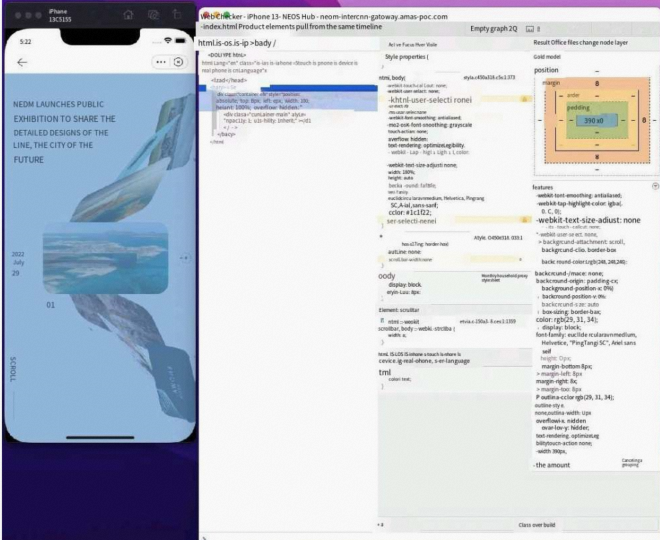
This guide explains how to preview, test, and debug your MiniApp using GoPay, Visual Studio Code, and Android or iOS simulators, including the supported capabilities and limitations of each method.
There are four ways to Preview and Test your MiniApp:
- In GoPay
No limitation, you need to publish and release miniapp first. This will not appear in GoPay page until it's officially release so you may safely test this. - In Visual Studio Code
Limitation: does not support certain SDKs (e.g., motion). - In Android Simulator
Limitation: does not support GoPay JSAPIs (getAuthCode, launchDeeplink, launchUri, and launchPayment) - In IOS Simulator
Limitation: does not support GoPay JSAPIs (getAuthCode, launchDeeplink, launchUri, and launchPayment)
Note: If you see errors while testing in a browser, it’s because the APIs are only supported within the GoPay app and are not available in browsers.
Test in GoPay
-
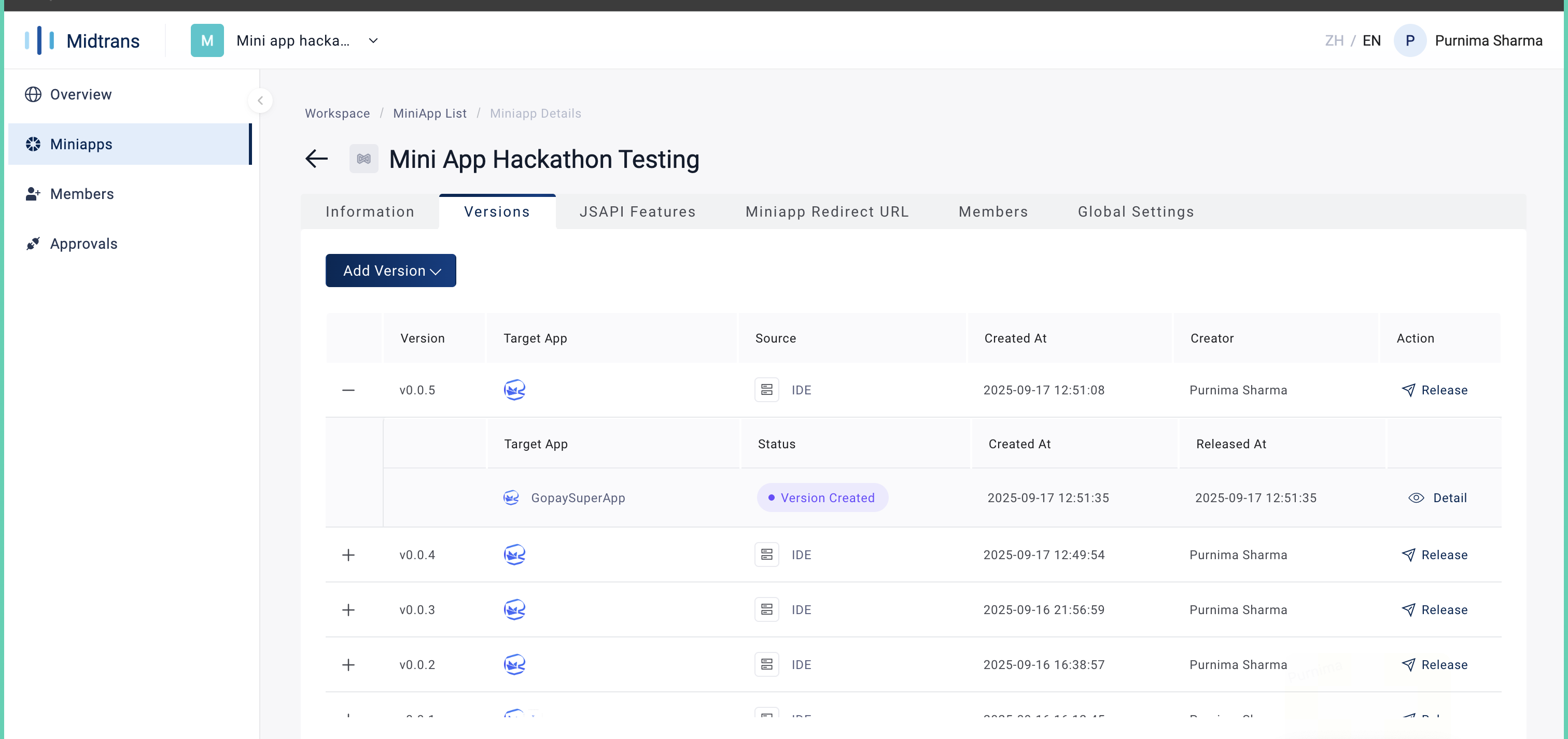
Login to GoPay MiniApp Portal, Click your MiniApp, Open the Versions tab, and click "Release"
-
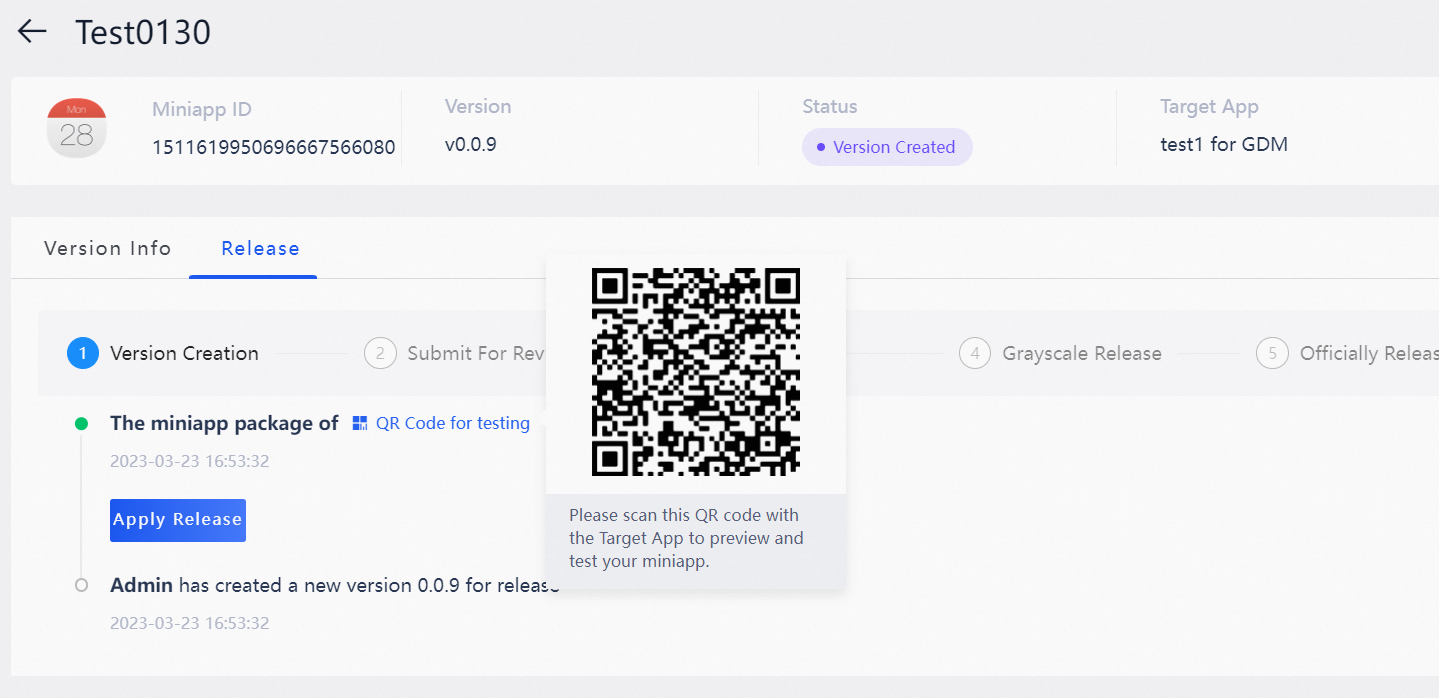
In the Release tab, Click the QR Code for testing button, a QR code will appear.
-
Scan the QR code and note the redirect URL. (QR will not work)
-
Use the noted values to generate the deeplink using the template below:
gopay://mini-app/windvane?app_id=<appId>&publish_id=<publishId>
Common mistakes:
- Scanning the QR code only opens a page with extra information.
- Ignore that page: instead, copy the URL link directly.
- The useful values are in the URL. Copy appid and publishid to construct the deeplink.
| Deeplink Params | Mandatory | Description | Where this is being used |
|---|---|---|---|
| app_id | M | This is your miniappid, you may get this from the portal | To open your latest miniapp version |
| publish_id | O | This is your unreleased version id, you can get this when you try to publish the miniapp and get from the QR code note. | To open your unreleased version of your miniapp (you need to include both app_id and publish_id) |
| mini_app_path | O | This is to specify your subpath of your miniapp where you want the user to land on, you can get this when. | To redirect to a specific page inside your miniapp (the value of path has to be URL encoded) |
Visual Studio Code
-
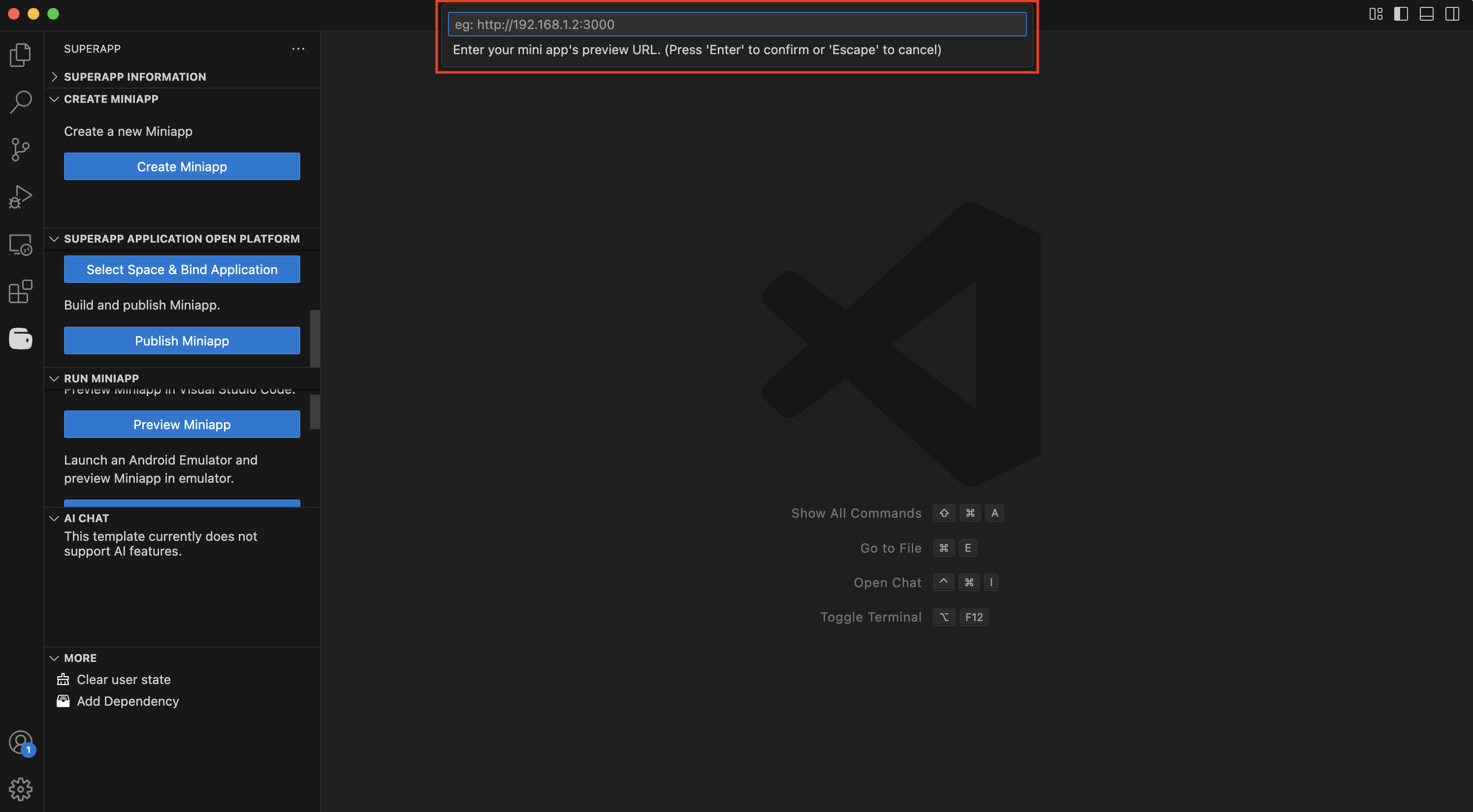
Open VS Code and Render application.
-
Click Preview Miniapp in the plugin sidebar.
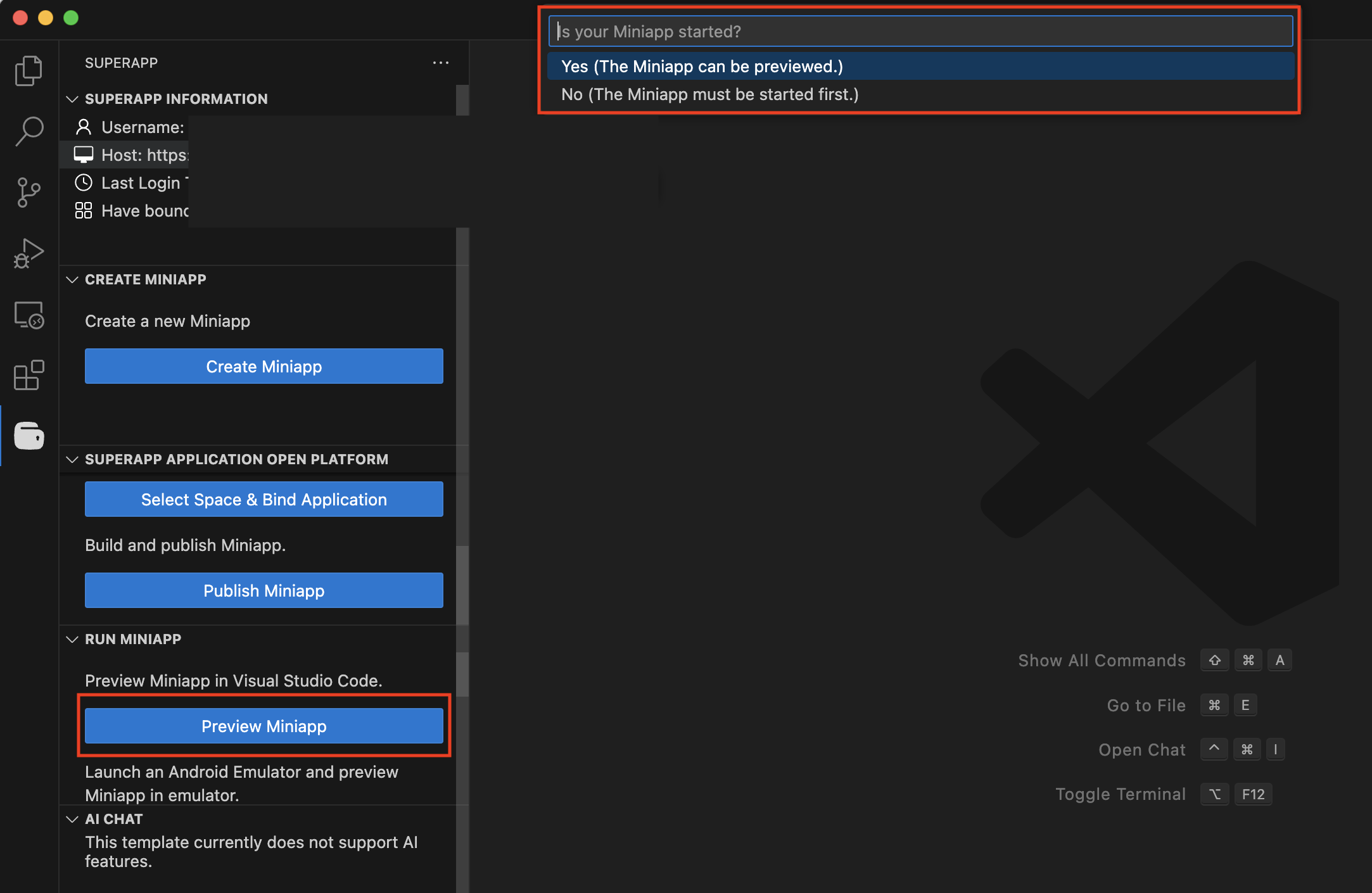
- Yes: Manually input your MiniApp preview URL.
- No: The plugin will run your start script and show the preview input afterward.
-
Paste your MiniApp URL in the top input field..

-
The preview will appear inside VS Code..
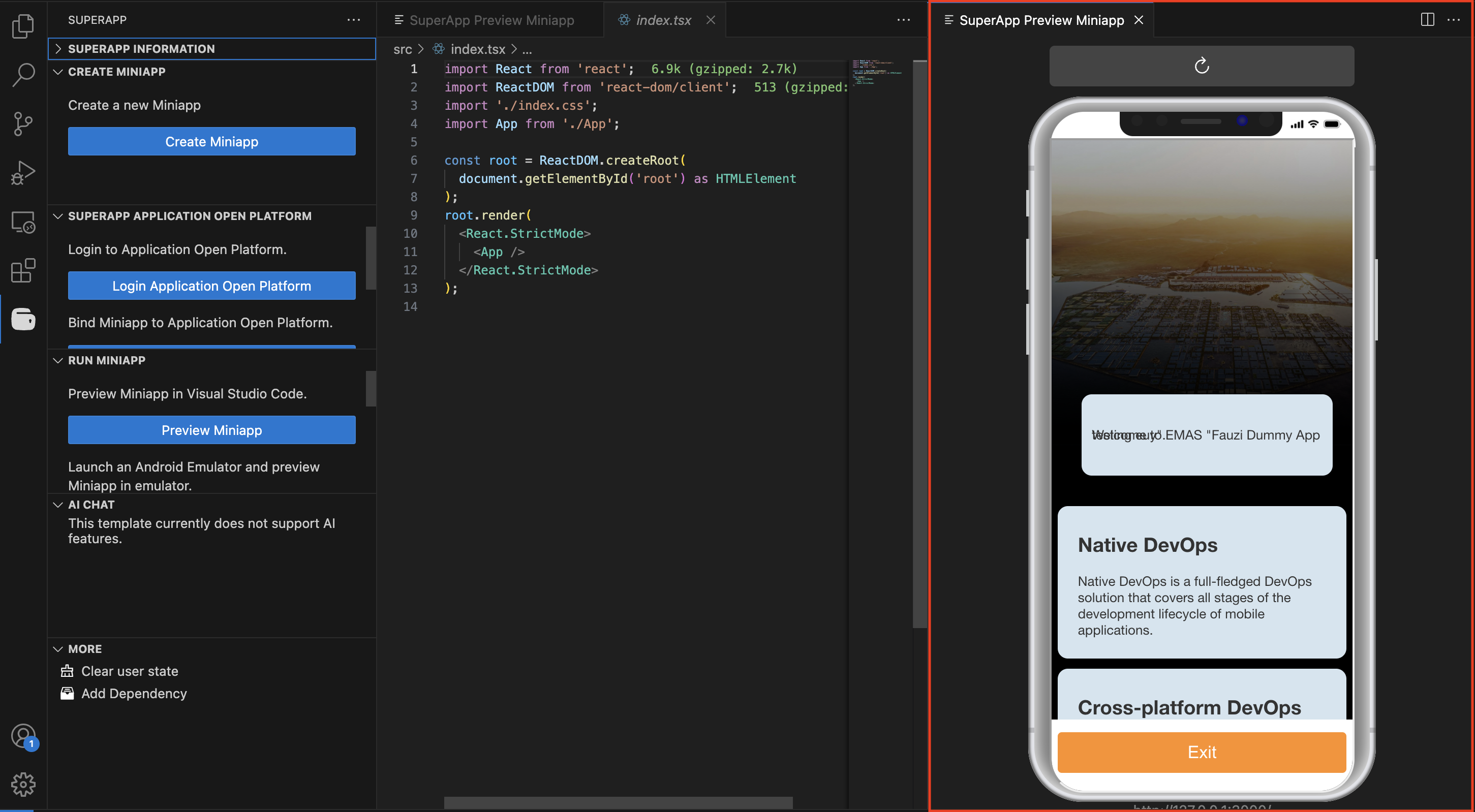
-
To debug, run Developer: Toggle Developer Tools from the command palette..
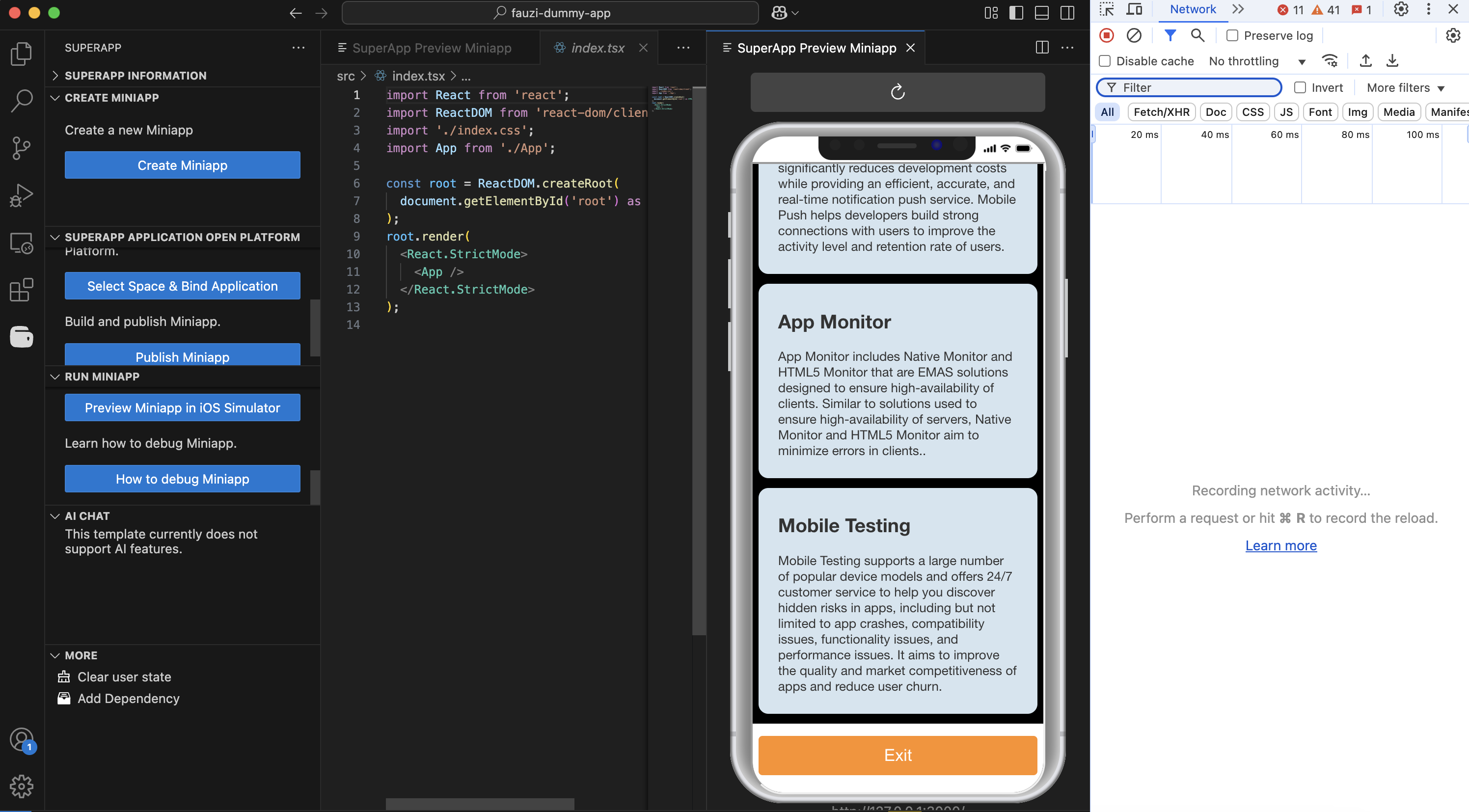
Android Simulator
-
Click Preview Miniapp in Android Emulator..
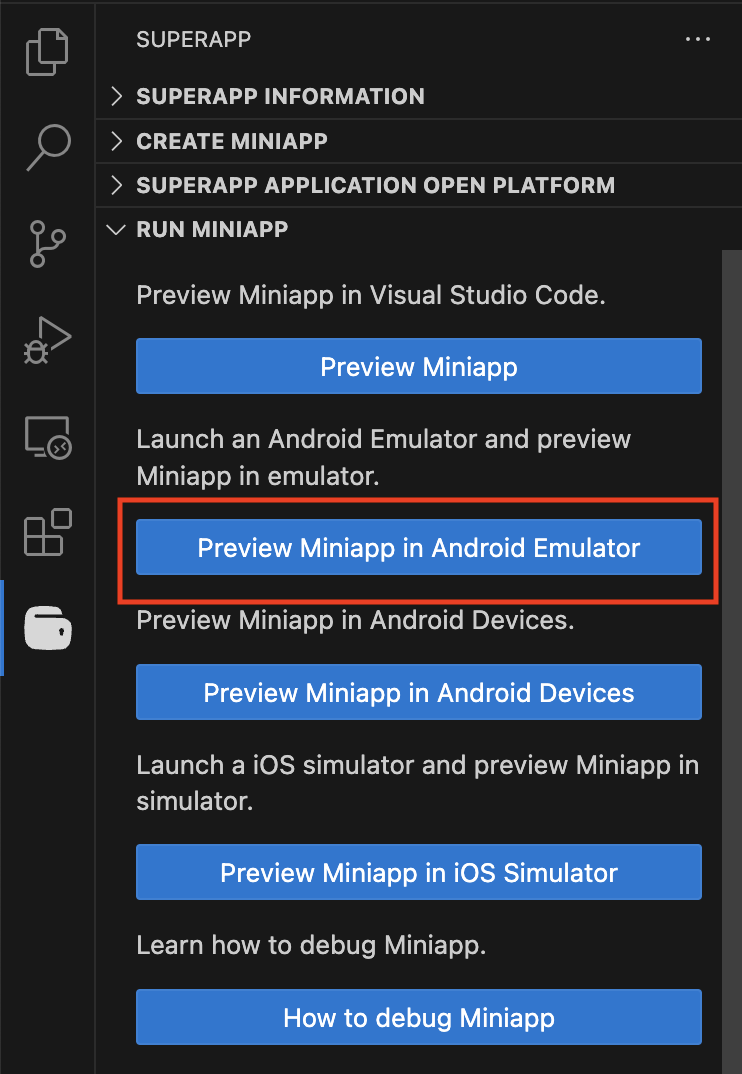
-
Enter the preview URL in the field that appears..

-
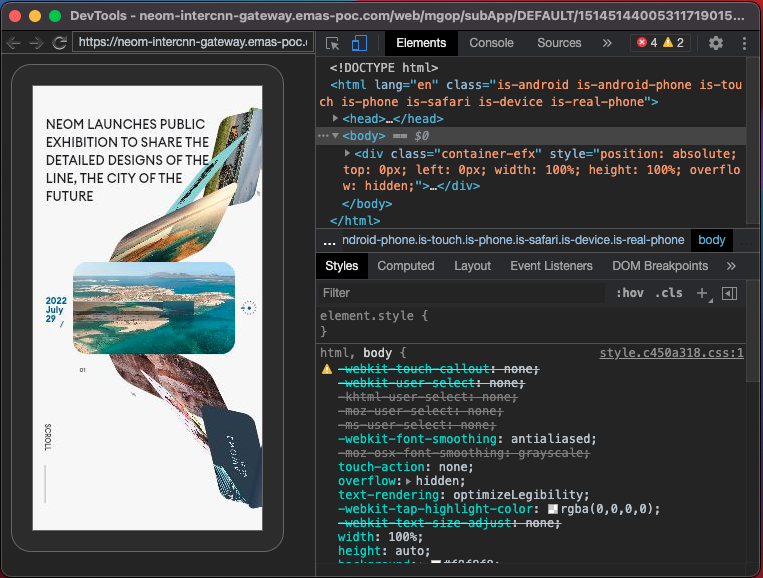
Open Chrome → go to
chrome://inspect/#devices→ find the WebView and click Inspect..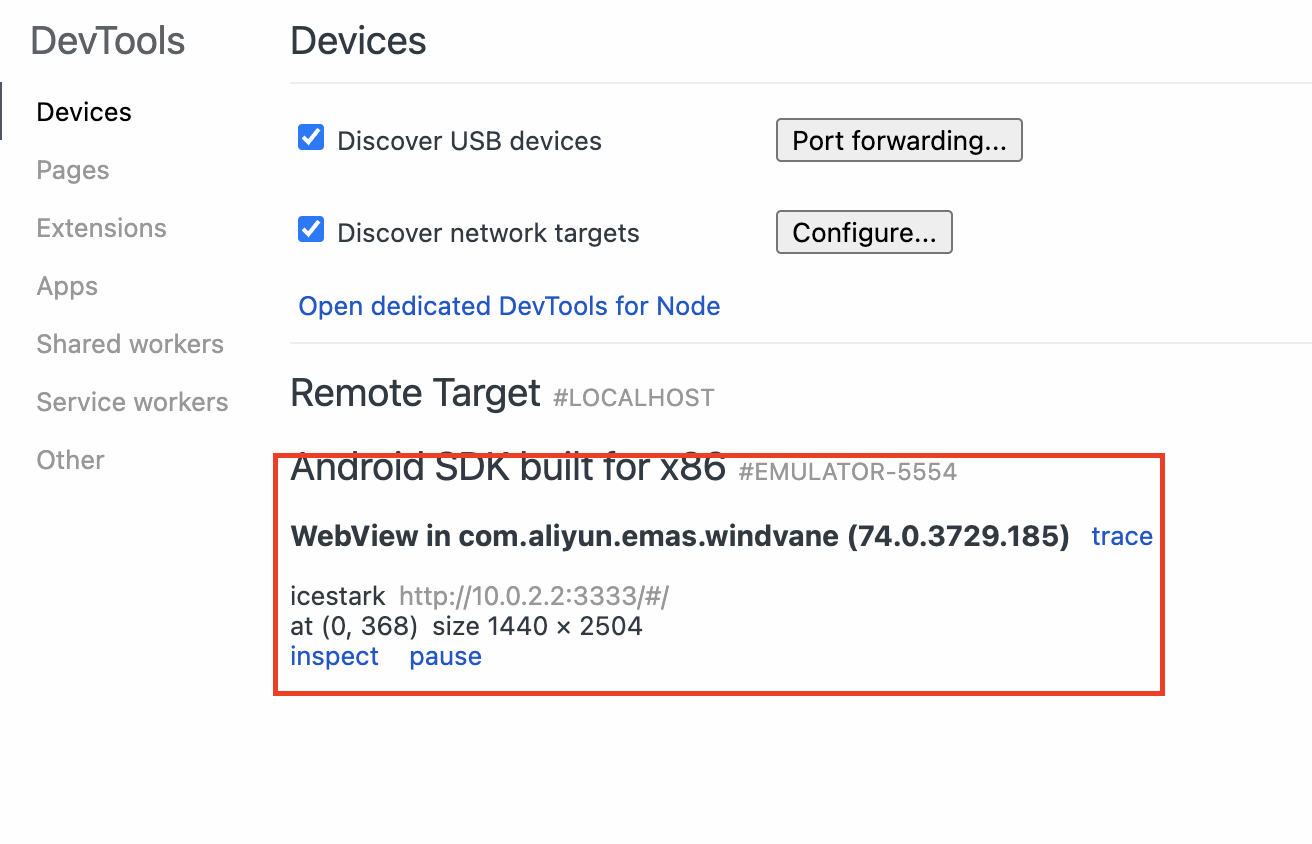
IOS Simulator
-
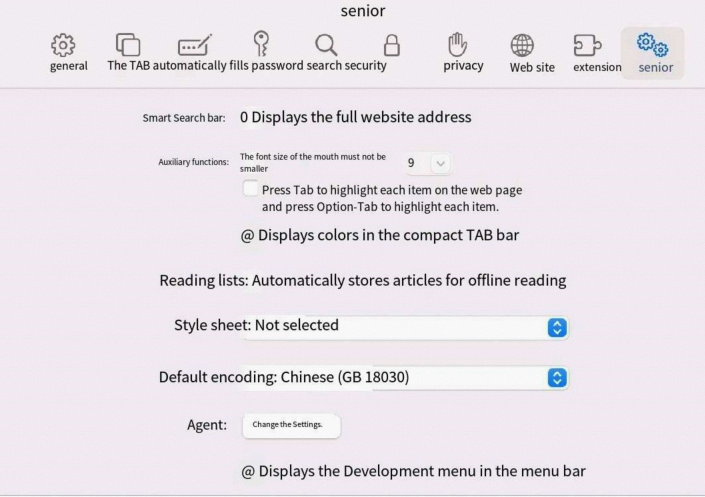
In Safari: Enable Develop menu in Preferences > Advanced.
-
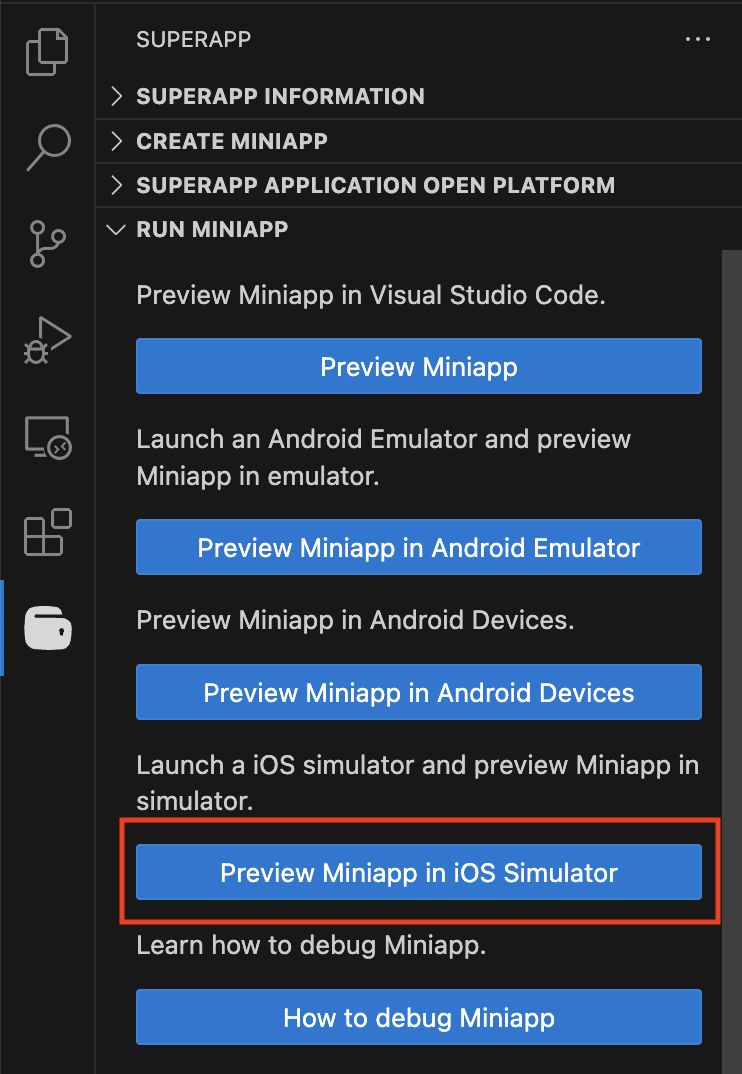
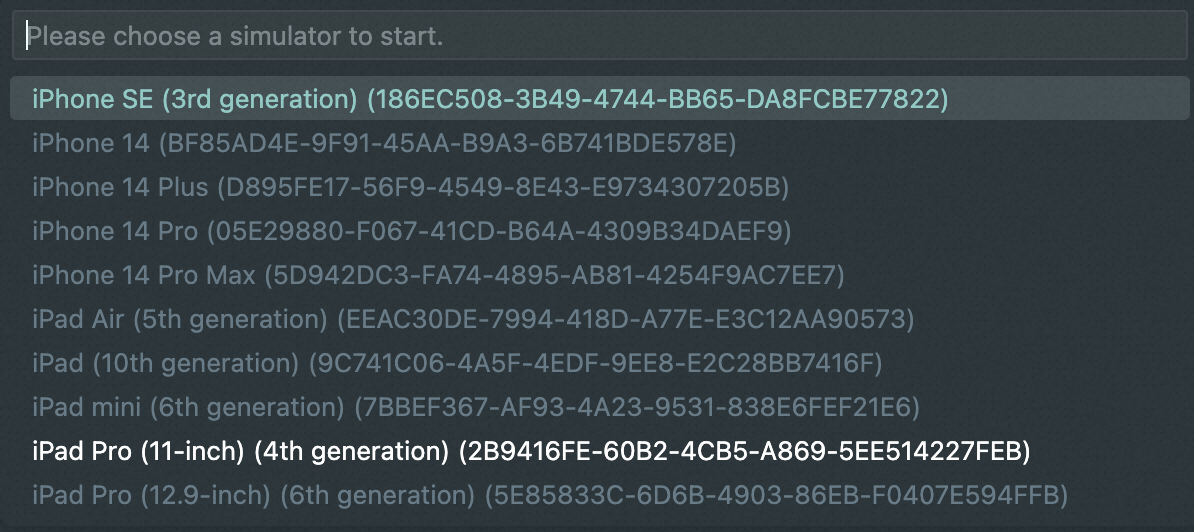
Click Preview Miniapp in iOS Emulator, then select a simulator.
-
Enter the MiniApp preview URL.
-
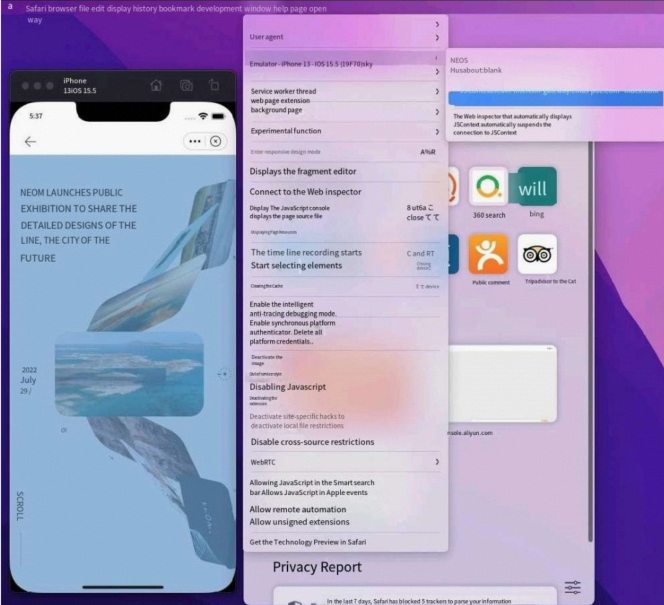
In Safari: Go to Develop > Simulator, then click the WebView to inspect it.
-
Click the WebView object that you want to inspect, and then debug the miniapp in Web Inspector.